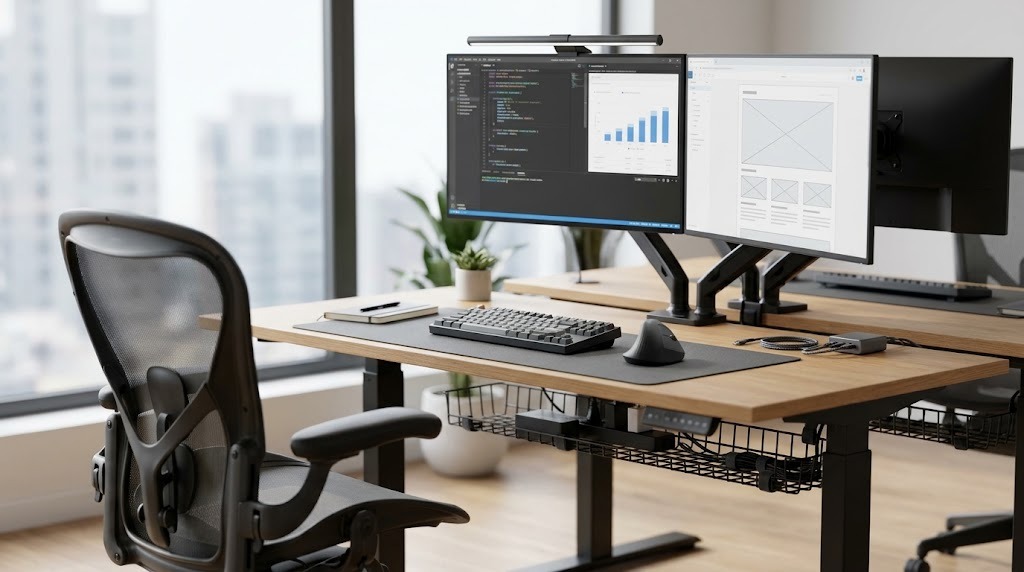
Office gear for productivity is the integrated system of ergonomic furniture, computational peripherals, display hardware, and environmental controls engineered to maximize cognitive throughput while minimizing musculoskeletal strain. Rather than acting as isolated accessories, high-performance workspace tools reduce physical friction, eliminate input latency, and optimize visual ergonomics to sustain deep focus.
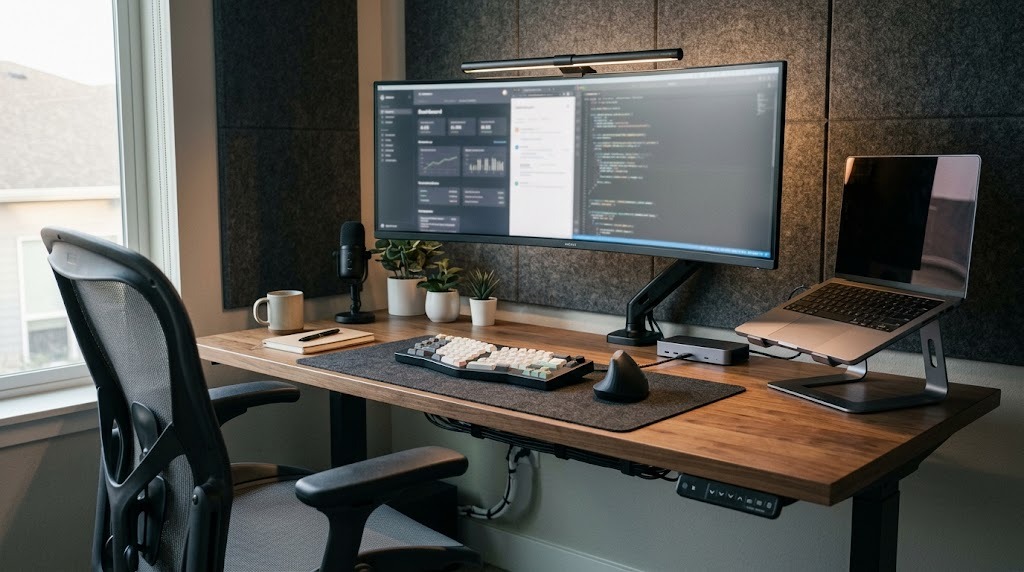
Key Facts / At a Glance
- Dynamic Musculoskeletal Support: Modern ergonomic seating adheres to ANSI/BIFMA G1-2017 guidelines, requiring dynamic recline (100°–110°) rather than static 90° postures to lower intervertebral disk pressure by up to 35%.
- Cognitive Visual Bandwidth: A unified display workspace spanning 38 to 49 inches reduces window-management overhead and application-switching friction, returning an average of 2.5 working hours per week.
- Bus-Powered Infrastructure: Enterprise-grade Thunderbolt 4 and USB4 docks provide 40 Gbps bidirectional bandwidth, delivering uncompressed dual-4K video, peripheral routing, and up to 100W Power Delivery over a single cable.
- Circadian Environmental Control: Desk-level task lighting calibrated between 4000K and 5000K at 500 to 1000 lux suppresses daytime melatonin production, boosting alertness and visual acuity.
- Neutral Reach Ergonomics: Keeping core input devices inside the 35 cm (14-inch) Neutral Reach Zone prevents repetitive shoulder abduction and forearm pronation injuries.
What Is the Biological and Cognitive Case for High-Performance Office Gear?
High-performance office gear prevents musculoskeletal fatigue from depleting cognitive stamina. Prolonged physical discomfort causes the brain to allocate metabolic glucose and executive attention toward pain mitigation rather than analytical work.
Every physical friction point—a chair that forces slouching, a monitor positioned at an incorrect focal distance, an uneven keyboard switch—triggers low-grade micro-distractions. Over an eight-hour workday, these micro-distractions break psychological flow states. Cognitive psychologists refer to this as “split-attention strain.”
Engineered workspace tools eliminate physiological stress through calibrated biomechanics, consistent tactile response, and optimized visual hierarchy. Investing in high-grade office gear for productivity treats the desk as a mission-critical operating environment.
How Do You Configure an Ergonomically Sound Workspace?
You configure an ergonomically sound workspace by anchoring your body’s musculoskeletal dimensions to the floor, desk, and display using the ANSI/HFES 100-2007 and ISO 9241-5 ergonomic standards.
+-------------------------------------------------------------+
|                     WORKSPACE ERGONOMIC ZONES               |
|                                                             |
|   Tertiary Zone (>50 cm / 20 in): Storage, Plants, Printers |
|   +-----------------------------------------------------+   |
|   | Secondary Zone (35-50 cm / 14-20 in): Reference, Mic |   |
|   |   +---------------------------------------------+   |   |
|   |   | Primary Zone (<35 cm / 14 in): Mouse, Keys  |   |   |
|   |   |               [  User  ]                    |   |   |
+---+---+---------------------------------------------+---+---+
1. Establish the Lower-Body Anchor
Set your chair height so both feet rest flat on the floor with your thighs parallel to the ground, maintaining an angle of 90° to 100° at the knees. Leave a 5 to 8 cm (2 to 3 finger widths) gap between the front edge of the seat pan and the back of your knees to preserve popliteal blood circulation.
2. Calibrate Desk Height to Resting Elbow Level
With your shoulders completely relaxed, bend your elbows to roughly 90° to 100°. Adjust your desk height until the top surface aligns precisely with the underside of your forearms. If using a fixed-height 74 cm (29-inch) desk that sits too high, raise your chair until your arms align and place an angled footrest under your feet.
3. Position Displays to Eliminate Cervical Flexion
Position your primary monitor directly in front of you at arm’s length (50 to 75 cm). Elevate the monitor so your eye line aligns with the top third of the panel. This orientation creates a natural 15° to 20° downward visual angle, which keeps the cervical spine neutral and minimizes trapezius strain.
4. Organize Desktop Equipment by Reach Zones
Organize your desktop equipment into three concentric reach envelopes:
- Primary Reach Zone (<35 cm / 14 inches): Reserved for high-frequency input tools (keyboard, mouse, sketch pad). Keep elbows close to your torso when using items in this zone.
- Secondary Reach Zone (35 to 50 cm / 14 to 20 inches): Reserved for items reached multiple times per hour (notepad, water bottle, reference tablet, low-profile microphone).
- Tertiary Reach Zone (>50 cm / 20 inches): Reserved for static equipment (printers, secondary docks, lighting controls, ambient plants). Retrieving items in this zone requires hip flexion or standing.
What Core Furniture Anchors High-Output Workspaces?
The foundational furniture of a high-output workspace consists of active, adjustable surfaces and seating that adapt to the human body across posture transitions.
| Component | Minimum Technical Standard | High-Performance Model Benchmark | Cost Range | Key Ergonomic Metric |
| Ergonomic Chair | 3D/4D armrests, dynamic synchro-tilt mechanism, adjustable lumbar support depth | Herman Miller Aeron (Size B/C), Steelcase Gesture, Haworth Fern | $850 – $1,800 | Reduces L4/L5 lumbar disk compression by up to 35% |
| Motorized Standing Desk | Dual-motor, 3-stage inverted columns, anti-collision sensor, programmable memory | Uplift V2 Commercial, Deskhaus Apex Two, Fully Jarvis | $600 – $1,300 | Height travel range of 57 to 125 cm (22.5″ to 49.2″) |
| Adjustable Monitor Arm | Gas spring or counterbalance mechanism, independent tilt/swivel/pivot, internal cable routing | Ergotron LX, Humanscale M8.1, Fully Jarvis Monitor Arm | $150 – $380 | Accommodates 3.2 to 18 kg (7 to 40 lbs) panels |
| Desk Mat / Blotter | High-density micro-weave cloth or textured PU leather, non-slip natural rubber backing | Grovemade Wool Felt Desk Pad, Orbitkey Desk Mat | $40 – $130 | 4mm uniform wrist cushioning; uniform mouse sensor tracking |
Active Seating Mechanics
Static chairs force static posture, which restricts femoral blood circulation and compresses the L4 and L5 lumbar vertebrae.
High-performance chairs use synchronized tilt mechanisms. These mechanisms recline the backrest at a 2:1 ratio relative to the seat pan, opening the pelvis while keeping feet flat on the floor.
The Steelcase Gesture provides 360° articulating armrests that support natural wrist angles during mobile and tablet typing.
Meanwhile, the Herman Miller Aeron uses 8Z Pellicle elastomeric mesh to distribute weight across eight distinct tension zones, preventing pressure hot spots along the ischial tuberosities (sit bones).
Standing Desk Lift Technology
Dual-motor lifting desks provide superior stability and higher weight capacities compared to single-motor hex-rod designs.
Three-stage lifting columns provide a wider height-adjustment range (57 to 125 cm), allowing them to support both a 5th-percentile sitting female (152 cm tall) and a 95th-percentile standing male (188 cm tall).
Look for desks with a minimum transit speed of 38 mm (1.5 inches) per second and noise levels below 50 dB.
Crossbar designs or dual-stage structural steel frames prevent monitor shake when typing at standing heights above 105 cm.
How Do Display and Input Peripherals Accelerate Daily Execution?
Display and input peripherals accelerate daily execution by minimizing ocular strain, shortening hand travel paths, and eliminating physical tracking latency.
+-------------------------------------------------------------+
|                 MONITOR SELECTION ARCHITECTURE              |
|                                                             |
|   49" Ultrawide (32:9)    Dual 27" (16:9 x 2)     Stacked   |
|   [=================]     [=======] [=======]     [=======] |
|   Unified Canvas          Discrete Workspaces     [=======] |
|   0 Bezels / High GPU     Bezel Split / Panning   High Vertical |
+-------------------------------------------------------------+
Visual Real Estate Configurations
Screen real estate directly impacts workflow efficiency. Choosing the right display layout depends on your cognitive multi-tasking patterns:
- Single 49-Inch Curved Ultrawide (5120×1440, 32:9 Aspect Ratio): Replaces two 27-inch QHD displays without a center bezel. A 1000R or 1800R curvature keeps the outer screen edges within your peripheral field of view, reducing neck rotation. Best suited for timeline video editing, financial data monitoring, and wide-canvas data modeling.
- Dual 27-Inch 4K Displays (3840×2160, 16:9 Aspect Ratio): Provides a crisp pixel density of 163 PPI (pixels per inch). This resolution yields tack-sharp typography and allows clean full-screen application isolation. However, it requires a 60° ocular sweep and introduces a central bezel interruption.
- Vertical/Stacked Secondary Displays (e.g., LG DualUp, 16:18 Aspect Ratio): Stacking a secondary panel above a primary screen or laptop keeps reference windows within the primary ocular plane, eliminating lateral cervical rotation.
Keyboard Architecture and Tactile Feedback
Standard membrane keyboards lack tactile feedback, causing users to “bottom out” keys against a plastic backplate with 60 to 80 grams of force.
Over long work sessions, this repetitive impact strains finger tendons. Mechanical and split ergonomic keyboards improve typing ergonomics through tuned actuation:
- Split Ergonomic Keyboards (e.g., ZSA Voyager, Kinesis Advantage360): Splitting the board into two independent, angled halves eliminates ulnar deviation (twisting wrists outward). Adjusting the tenting angle keeps the forearm in a neutral handshake position, preventing pronation.
- Low-Profile Mechanical Keyboards (e.g., Logitech MX Mechanical, NuPhy Air75 V2): Low-profile mechanical switches provide 2.5 to 3.2 mm of travel with a light 45-to-55-gram tactile actuation bump. The shallow switch chassis keeps wrists low, eliminating the need for bulky wrist rests.
Precision Ergonomic Mice
Standard flat mice lock the radius and ulna bones of the forearm into full horizontal pronation, compressing the median nerve inside the carpal tunnel.
Ergonomic vertical mice (like the Logitech Lift or MX Vertical) rotate the hand into an angled 57° handshake posture, transferring forearm movement to larger shoulder muscles.
For multi-monitor workstations, the Logitech MX Master 3S provides an 8,000 DPI optical sensor that crosses multi-screen setups with minimal wrist movement. It also features a frictionless electromagnetic scroll wheel (MagSpeed) that can fly through 1,000 spreadsheet rows per second without finger strain.
What Power and Connectivity Infrastructure Prevents Bottlenecks?
A single-cable connectivity hub eliminates cable clutter and delivers the high-speed data and display channels needed for multi-peripheral workflows.
+------------------------------------------------------------------+
|                    SINGLE-CABLE DESK TOPOLOGY                    |
|                                                                  |
|   Host Laptop  ====(Thunderbolt 4 / 40 Gbps)====> TS4 Dock       |
|                                                     |            |
|       +-----------------+-------------------+-------+--------+   |
|       |                 |                   |                |   |
|   DisplayPort 1.4   DisplayPort 1.4      USB 3.2          RJ-45  |
|       v                 v                   v                v   |
|   Monitor 1 (4K)    Monitor 2 (4K)      Peripherals     2.5G LAN |
+------------------------------------------------------------------+
Docking Stations: Thunderbolt 4 vs. Standard USB-C
Consumer USB-C hubs share 10 Gbps of bandwidth across video, USB data, and Ethernet lines. Connecting dual 4K monitors to these hubs forces displays down to 30 Hz refresh rates or compresses USB storage speeds down to legacy USB 2.0 rates (480 Mbps).
Dedicated enterprise docks (such as the CalDigit TS4, OWC Thunderbolt Go, or Anker 777) use Intel Goshen Ridge Thunderbolt 4 controller chipsets to deliver 40 Gbps of bidirectional bandwidth. This architecture supports:
- Simultaneous dual 4K displays running at 60 Hz or a single 8K display at 60 Hz with uncompressed DisplayPort 1.4 HBR3.
- Up to 98W–100W of clean Power Delivery (PD 3.0), providing enough juice to prevent CPU throttling on high-draw workstations like a 16-inch MacBook Pro or Dell XPS 15.
- Dedicated USB 3.2 Gen 2 controller lanes (10 Gbps each) that run multi-gigabit Ethernet (2.5GbE) without dropping data packets during video conferences.
Cable Management Systems
Exposed cables cause both visual clutter and mechanical failure points. On height-adjustable desks, cables without adequate slack can pull tight and rip ports out of monitor inputs. Implement this structured four-point cable-management system:
- Under-Desk Cable Raceway: Mount a wide, rigid wire-mesh or sheet-metal raceway (such as the Monoprice Under Desk Cable Tray) to the desk underside. Secure all AC power strips, monitor bricks, and docking stations inside this tray.
- Articulated Cable Spine / Snake: Run all cables traveling from the desk to the wall through a flexible cable spine. This keeps the bundle organized and flexible as the desk moves up and down.
- Calibrated Cable Slack: Raise the standing desk to its absolute maximum height limit before zip-tying or sleeving cables. This ensures cables never experience tensile shock during upward travel.
- Hook-and-Loop Fasteners: Replace plastic zip ties with hook-and-loop straps. Reusable straps allow you to swap peripherals in seconds without snipping ties near delicate data lines.
How Does Environmental Calibration Affect Daily Productivity?
Environmental factors—including lighting quality, acoustic control, and air exchange—directly regulate cognitive alertness and visual focus.
+-------------------------------------------------------------+
|             CIRCADIAN LIGHTING & ACOUSTIC THRESHOLDS        |
|                                                             |
|   Active Focus (09:00 - 15:00):  4000K-5000K  |  500-1000 Lux |
|   Wind-Down    (17:00 - 21:00):  2700K-3000K  |  150-300 Lux  |
|                                                             |
|   Ambient Background Noise Target:  <45 dB(A)               |
|   Deep Work Acoustic Attenuation:   ANC Active / RT60 <0.6s |
+-------------------------------------------------------------+
Task Lighting and Circadian Rhythm
Poor lighting causes eye strain, headaches, and afternoon fatigue. Optimize your desk lighting using these photometric targets:
- Correlated Color Temperature (CCT): Set daytime working light between 4000K and 5000K (cool white). This range stimulates intrinsically photosensitive retinal ganglion cells (ipRGCs), suppressing melatonin production and boosting daytime alertness. Switch to 2700K (warm white) after 17:00 to support your natural circadian wind-down.
- Illuminance Levels: Maintain 500 to 1000 lux across your primary desk area, compared to 200 to 300 lux for surrounding ambient room lighting.
- Asymmetric Monitor Light Bars (e.g., BenQ ScreenBar Pro, Yeelight Bar): Traditional desk lamps bounce direct light off the glass surface of your display, washing out contrast and causing glare. Asymmetric light bars mount directly to your monitor’s bezel, casting an angled sheet of light across the desk surface while preventing reflections on the screen.
- Color Rendering Index (CRI): Choose lighting units with a CRI rating of 95 or higher (Ra ≥95). High-CRI lighting matches natural sunlight, making documents easier to read and reducing eye strain.
Acoustic Optimization and Sound Masking
Open floor plans and residential environments often generate 55 to 65 dB(A) of intermittent background noise. Variable conversational noise disrupts short-term working memory, slowing task completion.
- Target Ambient Noise Level: Aim for a steady ambient floor of 40 to 45 dB(A). Continuous broadband sound profiles (like brown noise) mask sharp background interruptions, protecting cognitive flow states.
- Active Noise Cancellation (ANC): Over-ear headphones using hybrid feedback/feedforward ANC systems (such as the Sony WH-1000XM5 or Bose QuietComfort Ultra) drop low-to-mid frequency ambient noise by 25 to 30 dB.
- Passive Acoustic Treatment: Hard walls, glass partitions, and wooden desk surfaces bounce sound around the room, raising reverberation times (RT60) above 1.0 second. Placing 24mm PET polyester felt desk privacy screens and hanging acoustic felt wall panels lowers RT60 below 0.6 seconds. This dampens speech flutter-echo and makes video-call audio clearer.
What Are the Most Critical Setup Mistakes and How Do You Resolve Them?
Even top-tier office gear underperforms if configured incorrectly. Here are the four most common setup mistakes and their technical solutions.
1. The Ergonomic Armrest Height Mismatch
- The Mistake: Users set their chair armrests higher than their desk surface. When pulling the chair in, the armrests hit the desk edge. This forces the user to sit forward on the edge of the seat, disengaging the backrest and stressing the lumbar spine.
- The Fix: Lower your armrests until they slide flush beneath the desk surface. Alternatively, set them level with the desk top so they extend the support surface for your forearms without elevating your shoulders.
2. Display Refresh Rate Lock at 30 Hz
- The Mistake: Plugging a 4K display into an older HDMI 1.4 port or a cheap USB-C hub can lock the monitor’s refresh rate to 30 Hz. The resulting cursor latency and choppy window movements cause subtle visual fatigue.
- The Fix: Open your display settings in macOS or Windows and confirm the refresh rate is set to 60 Hz or higher. Always connect displays using DisplayPort 1.4, DisplayPort 2.1, or HDMI 2.1 cables certified for 48 Gbps bandwidth.
3. Peripheral Disconnects Caused by USB Bus Saturation
- The Mistake: Daisy-chaining external hard drives, high-resolution 4K webcams, and audio interfaces into an unpowered USB hub causes devices to drop connections mid-meeting.
- The Fix: Distribute your peripherals across separate root USB hubs. Connect high-bandwidth webcams and external storage drives directly to dedicated host ports or an externally powered Thunderbolt dock with its own power supply. On Windows machines, open Device Manager, expand the Universal Serial Bus controllers menu, open the Power Management tab, and uncheck “Allow the computer to turn off this device to save power.”
4. Cable Pinch and Tension Breaks on Adjustable Desks
- The Mistake: Bundling cables tightly while the standing desk is parked in its lowest sitting position. When the desk rises to standing height, the stretched cables can snap, pull the docking station off the desk, or crack monitor I/O ports.
- The Fix: Always calibrate your cable lengths with the desk raised to its maximum standing height. Leave 10 to 15 cm of slack looped near the desk hinge points to allow free movement across the entire adjustment range.
Which Productivity Gear Ecosystem Best Fits Your Role?
No single workstation configuration fits every professional workflow. The following matrix matches specific hardware ecosystems to primary job roles and cognitive demands.
+------------------------------------------------------------------+
|               PERSONA-DRIVEN GEAR ARCHITECTURES                  |
|                                                                  |
|   SOFTWARE ENGINEER / DATA SCIENTIST                             |
|   Focus: Code visibility & physical comfort                      |
|   Gear: Dual stacked/vertical displays, split mechanical board   |
|                                                                  |
|   EXECUTIVE / PRODUCT MANAGER                                    |
|   Focus: Communication & rapid application switching             |
|   Gear: 38" Ultrawide, studio-grade mic, multi-device mouse       |
|                                                                  |
|   HYBRID WORKER / DIGITAL NOMAD                                  |
|   Focus: Ultralight portability & rapid deployment               |
|   Gear: 15.6" OLED portable monitor, 65W GaN adapter, folding keys|
+------------------------------------------------------------------+
1. The Deep-Work Software Engineer / Data Scientist
- Primary Needs: Massive vertical screen space for reviewing long code files, responsive tactile inputs, and durable ergonomic support for long focus sessions.
- Display Configuration: A 32-inch 4K primary monitor (3840×2160) paired with an adjacent 28-inch LG DualUp (16:18 aspect ratio). This vertical layout displays up to 120 lines of code without scrolling.
- Input Architecture: A Kinesis Advantage360 or ZSA Moonlander split mechanical keyboard using lubricated tactile switches (such as Gateron Baby Kangaroo or Cherry MX Brown), paired with an ergonomic vertical mouse.
- Seating Infrastructure: A Steelcase Leap V2 with active lumbar support, mounted on a dual-motor standing desk with customizable height memory presets.
2. The Executive / Product Manager / Consultant
- Primary Needs: Clean visual organization, fast context-switching across spreadsheets and slide decks, and crystal-clear presentation audio.
- Display Configuration: A 38-inch curved ultrawide monitor (3840×1600, 21:9 aspect ratio). This size offers the ideal middle ground: it provides plenty of screen width for multiple side-by-side windows without requiring excessive head turning.
- Input Architecture: A Logitech MX Master 3S mouse paired with an MX Keys S keyboard, taking advantage of Logitech Flow to instantly switch control between personal and work laptops.
- Audio/Visual Rig: A Shure MV7+ dynamic USB/XLR microphone on an Elgato Wave Mic Arm LP, an Opal Tadpole or Sony A6700 camera via Cam Link 4K, and a BenQ ScreenBar Pro for balanced, flicker-free face lighting.
3. The Agile Hybrid Worker / Traveling Professional
- Primary Needs: Lightweight travel footprint, fast setup and teardown times, and full ergonomic support on the go.
- Display Configuration: An ultra-slim 15.6-inch 1080p or 2.5K portable OLED monitor (like the ASUS ZenScreen OLED MQ16AH) powered directly from a laptop using a single USB-C DP Alt Mode cable.
- Input Architecture: A NuPhy Air60 V2 ultra-slim mechanical keyboard paired with a Logitech MX Anywhere 3S mouse that tracks on any surface, including hotel glass desks.
- Power & Travel Infrastructure: A 100W multi-port Gallium Nitride (GaN) wall charger (such as the Anker Prime 100W), an Roost V3 collapsing laptop stand to elevate the laptop screen to eye level, and an enterprise-grade USB-C braided cable rated for 240W charging and 20 Gbps data transfer.
When Is Premium Office Gear the Wrong Investment?
While purpose-built office gear can dramatically improve daily output, investing in high-end physical equipment will not solve fundamental issues with software bloat, disorganization, or poor project workflows.
- Underpowered Workstation Hardware: Upgrading to a premium 49-inch ultrawide monitor will degrade your overall experience if your laptop lacks the GPU power to drive a 5120×1440 resolution at 60 Hz. In that case, the external display will stutter and drop frames. Check your machine’s graphics capabilities before buying wide-canvas displays.
- Small Workspace Constraints: Setting up an 180 cm (72-inch) motorized desk or a massive 49-inch ultrawide monitor in a compact room with less than 90 cm of rear chair clearance creates a cramped, uncomfortable workspace. In tight footprints, a space-efficient 120×60 cm desk paired with a single 32-inch 4K monitor mounted on a heavy-duty arm yields better usable space.
- Short-Term Leases or High Mobility: Heavy furniture like solid hardwood desks and commercial-grade ergonomic chairs weigh between 30 and 65 kg (65 to 140 lbs). If you move apartments or offices frequently, heavy setups create substantial moving overhead. In these living situations, modular or easily transportable alternatives make far more practical sense.
Frequently Asked Questions About Office Gear for Productivity
How often should you switch between sitting and standing at a desk?
You should follow a 3:1 ratio of sitting to standing every hour: sit for 45 minutes, stand for 15 minutes. Static standing for more than 30 consecutive minutes increases venous pooling in the lower legs and strains the lower back just as much as continuous sitting. Dynamic sit-stand cycles keep your circulation moving without causing fatigue.
Does a monitor light bar actually reduce eye strain?
A monitor light bar reduces eye strain by illuminating your primary desk area while preventing direct reflections on your screen. By raising the ambient light around your workspace, light bars reduce high contrast differences between bright displays and dark rooms, which helps relax your pupillary muscles during evening work sessions.
What is the minimum desk depth for a 32-inch or 49-inch monitor?
The minimum desk depth for a 32-inch or 49-inch monitor is 75 to 80 cm (30 to 32 inches). Panels this large require a viewing distance of 65 to 80 cm to keep the screen edges within your natural visual field. Placing these large displays on a shallow 60 cm (24-inch) desk causes eye strain and forces uncomfortable head-turning.
Can an ergonomic vertical mouse handle high-precision creative work?
An ergonomic vertical mouse works well for general computing, project management, and writing, but it can feel imprecise for micro-pixel tasks like photo retouching or fine vector illustration. Handshake angles rely on larger arm movements rather than fine fingertip adjustments. For detail work, combine a vertical mouse with an active pen tablet or trackball.
What is the difference between Thunderbolt 4 and USB4 for docking stations?
Thunderbolt 4 guarantees a continuous data transfer floor of 32 Gbps for PCIe storage devices and mandates dual 4K display support across all certified hubs. Standard USB4 shares a 40 Gbps maximum bandwidth cap, but individual hardware makers can choose whether to support PCIe data tunneling or dual-display routing. Thunderbolt 4 offers guaranteed performance consistency for complex, multi-peripheral workstations.
Selecting the right office gear for productivity turns your workspace into an intentional, high-performance tool. By investing in dynamic ergonomic seating, responsive input devices, clean single-cable connectivity, and balanced environmental controls, you eliminate the daily physical strains that interrupt deep focus. Build your setup around your body’s biomechanics and daily computing demands to enjoy a healthier, faster, and more sustainable workflow.