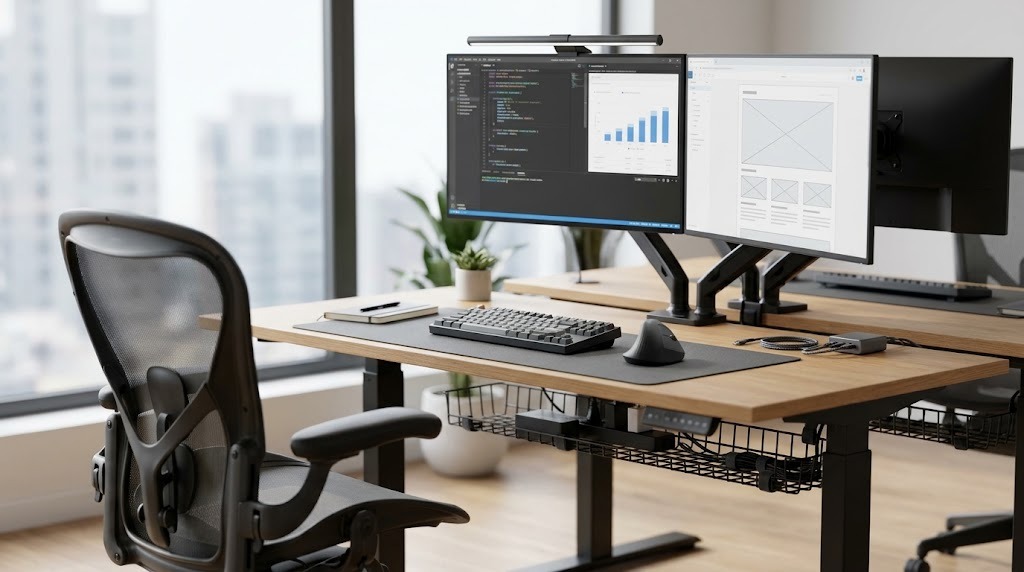
Office desk accessories are specialized organizational, physical, and ergonomic tools engineered to optimize workspace utility, enforce biomechanically healthy posture, and reduce cognitive friction. By systematically managing peripheral hardware, routing cable pathways, and layering immediate-access storage, these components transform a static flat surface into a high-performance workstation.
Key Facts / At a Glance:
- Monitor Weight Capacity: Standard gas-spring arms support 4.4–25+ lbs via VESA 75/100mm mounting standards, reclaiming up to 40% of usable desk depth.
- Lighting Metrics: High-end monitor light bars utilize a Color Rendering Index (CRI) above 95 to prevent digital eye strain and color distortion.
- Spatial Standards: Protective desk mats typically adhere to a 900x400mm baseline, dictating the primary interaction zone for keyboards and mice.
- Cable Management: Heavy steel under-desk cable trays range from 16 to 34 inches, designed to isolate system power cords from leg space.
- Ergonomic Baseline: Negative-tilt keyboard trays drop peripherals below the desk surface to maintain an optimal 90-degree to 110-degree elbow angle.
What Are Office Desk Accessories?
Office desk accessories encompass the entire ecosystem of physical add-ons applied to a desk frame and desktop surface. Unlike basic decorative items, functional desk accessories act as mechanical extensions of the user’s workflow. They dictate spatial organization through distinct reach zones: the primary zone (0–15 inches for immediate keyboard/mouse access), the secondary zone (15–28 inches for touch-displays and active documents), and the tertiary zone (28+ inches for ambient lighting and bulk storage).
Implementing the correct combination of these tools directly mitigates chronic repetitive strain injuries (RSIs) while eliminating the visual clutter that induces cognitive overload.
What Are the Core Categories of Desk Accessories?
The desk accessory ecosystem is segmented into four primary functional categories. Each category addresses a specific hardware requirement or biological limitation of the human body operating in a seated or standing position.
Ergonomic Support Tools
Ergonomic utilities dictate the physical relationship between the user and their hardware. Monitor arms utilize gas-spring or mechanical articulation to float screens at eye level, supporting weights from 4.4 up to heavy-duty 40+ lbs setups via universal VESA 75mm or 100mm plates. Adjustable keyboard trays allow for negative tilt, which prevents wrist extension during typing. Dynamic rocking footrests keep lower-body circulation active by encouraging micro-movements, while memory foam palm rests provide static support blocks during workflow pauses.
Storage and Organization Utilities
Storage accessories pull physical items out of the primary reach zone to maximize active desktop real estate. Desktop organizers and tiered storage cubbies handle physical media. Document slopes sit directly between the keyboard and monitor, enabling natural inline reading that prevents neck torsion. Adjustable mesh drawer dividers provide modular compartmentalization for small peripherals, flash drives, and writing instruments.
Cable and Power Management
Sub-surface management transforms chaotic wire webs into invisible, structured routing systems. Heavy steel under-desk cable trays act as the primary conduit for power strips and thick AC cables. Neoprene cable wrap sleeves consolidate multiple monitor and data wires into a single umbilical cord. Weighted magnetic cable anchors sit on the desk surface, holding charging cables exactly at the desk edge so they do not fall behind the furniture when unplugged.
Surface and Ambiance Layering
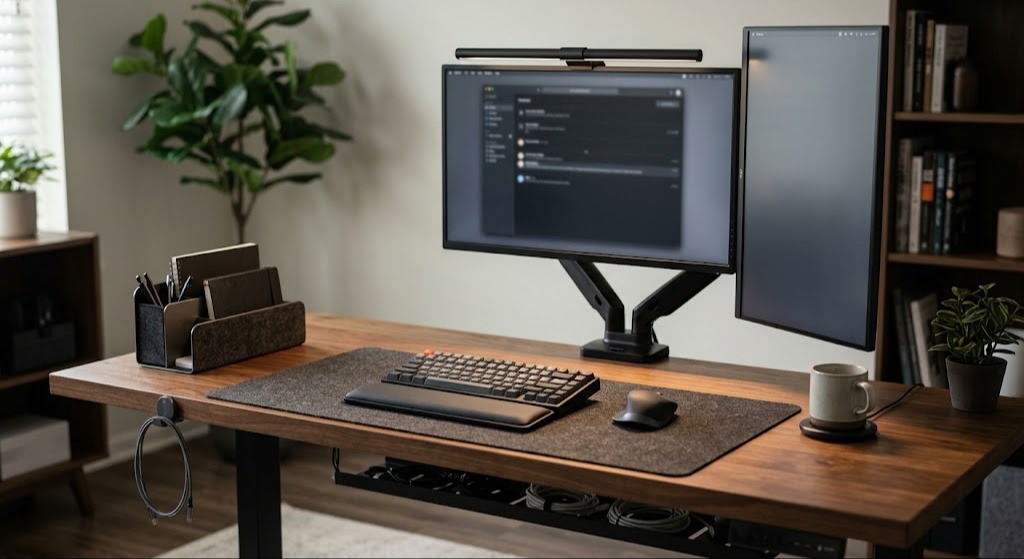
Surface accessories alter the tactile, visual, and thermal properties of the workspace. Protective desk mats provide a unified friction surface for mice while protecting the wood or laminate desk below. Asymmetric monitor light bars cast directional illumination onto the desk surface without hitting the screen, eliminating glare while providing task lighting. Active mug warmers maintain liquid temperatures, keeping users stationed at their desks rather than frequenting the breakroom.
How Do You Execute a Workspace Setup?
Building an optimized workspace requires a strict sequential process. Attempting to route cables before anchoring heavy monitors invariably leads to tangled wires and uneven cable tension.
- The Pure Clearing Phase: Remove every single item from the desk surface, including PCs and peripherals. Wipe down the desktop completely with an isopropyl alcohol solution to remove skin oils that prevent adhesive cable clips from bonding.
- Structural Anchoring: Mount core heavy components first. Attach monitor arms to the desk edge, mount monitors to the VESA plates, and position the heavy computer chassis. Checkpoint: Ensure clamp mounts are fully tightened. If using a hollow-core desk, insert a steel reinforcement plate between the clamp and the desk to prevent the wood from crushing.
- Ergonomic Tuning: Sit in the primary office chair at its optimal height. Adjust the monitor gas springs so the top bezel of the screen aligns exactly with horizontal eye level. Position keyboard trays to achieve a neutral wrist angle.
- Sub-Surface Cable Routing: Collect, organize, and bundle all system power cables below the surface line. Route cables through under-desk trays and secure umbilical cords with reusable hook-and-loop ties. Do not use permanent zip ties, as equipment changes will require cutting them.
- Surface Layering: Lay down desk mats in the primary reach zone. Position ambient task lights, connect magnetic cable anchors, and arrange immediate-access desktop storage containers.
How Do Key Desk Accessories and Materials Compare?
Selecting the right accessory requires balancing functional benefits against material limitations and desk compatibility.
| Accessory / Material Type | Primary Advantages (Pros) | Notable Drawbacks (Cons) | Typical Price Range |
| Gas-Spring Monitor Arm | Reclaims desk space; provides infinite 3D adjustability; ideal for sit-stand transitions. | Unsuitable for weak glass or hollow-core (cardboard filled) desk surfaces without distribution plates. | $35 – $250+ |
| Asymmetric Light Bar | Illuminates the immediate workspace without casting glare on screens; requires zero desk footprint. | May block top-mounted webcams or interfere with light-based facial recognition scanners. | $30 – $150 |
| Wool / Felt Desk Mat | Premium tactile texture; highly effective acoustic dampening for mechanical keyboards. | Prone to staining and edge fraying; creates heavy tracking resistance unsuitable for high-DPI mice. | $20 – $80 |
| PU Leather Desk Mat | Completely waterproof; trivial wipe-clean maintenance; low gliding friction for rapid mouse movement. | Traps heat and humidity against wrists; prone to surface cracking if exposed to heavy UV sunlight. | $15 – $45 |
What Are the Common Desk Setup Pitfalls?
Even premium desk accessories fail when applied without understanding their mechanical limitations or biological interactions.
The Palm-Rest Mistake
Users commonly rest their bare wrists directly on memory foam cushions while actively typing. This compresses the carpal tunnel and restricts tendon glide. Correction: Keep wrists floating straight while actively typing. Use the wrist rest exclusively to support the muscular base of the palms during brief moments of rest between typing bursts.
Sagging Monitor Mounts
A frequent symptom of setup failure is a screen that slowly droops downward on its arm over the course of a day. This indicates incorrect gas cylinder tension. Correction: Use the included hex wrench to turn the tension screw on the articulation elbow counterclockwise toward the (+) marker. This stiffens the gas chamber to match the specific weight of the display.
Cable Destruction on Standing Desks
Organizing and tying cables down while a motorized desk is in its lowest seated position guarantees cable destruction. When the desk rises, the locked cables act as anchors, ripping ports out of monitors or pulling PCs off the floor. Correction: Always fully extend adjustable stand-up desks to their maximum height before wrapping, routing, and locking cables to ensure proper line slack.
Which Accessories Fit Your Professional Profile?
Desk setups are not one-size-fits-all. Hardware selections must reflect the specific data inputs, temporal demands, and environmental constraints of the user’s profession.
The Remote Corporate Professional
The corporate professional relies on constant communication and late-hour document review. Focus on an asymmetric monitor light bar to preserve eye focus during evening emails without degrading webcam contrast. Implement a dense felt desk mat to cut down typing echoes and acoustic bounce during video calls. A concealed under-desk cable tray is mandatory to project a clean, organized background in a home office environment.
The High-Data Software Engineer
Engineers manipulating thousands of lines of code require aggressive screen real estate and uncompromising ergonomics. Prioritize a dynamic multi-monitor gas arm setup capable of seamlessly rotating screens into vertical (portrait) orientations for code reviews. Pair this with a heavy-duty under-desk keyboard tray with negative tilt to safeguard wrist longevity over consecutive 10-hour engineering sessions.
The Minimalist Designer
Designers prioritize visual clarity and frictionless surfaces. Lean on a premium linoleum or full-grain leather desk pad for smooth, precise stylus or mouse tracking. Utilize hidden modular drawer dividers to keep Pantone books and physical tools out of sight, and rely on a single magnetic cord anchor to maintain a pristine, zero-clutter workspace.
Frequently Asked Questions
How deep should a desk be for a dual-monitor arm setup?
A minimum depth of 24 inches is required for dual monitors, but 30 inches is optimal. Depths under 24 inches force the screens too close to the user’s eyes, even when the articulating arms are pushed entirely backward against the wall.
Do monitor light bars damage or scratch screens?
No, provided they use a counterweighted gravity clip rather than a spring-loaded clamp. High-quality light bars rest delicately on the top bezel and balance via a heavy rear weight, applying zero crushing pressure to the delicate LCD or OLED panel.
Can you mount a heavy monitor arm on a tempered glass desk?
You should never clamp a steel monitor arm directly to bare glass, as the concentrated point-load will shatter the surface. To safely mount an arm on glass, you must use a steel or solid wood reinforcement plate (at least 4×4 inches) to distribute the clamping pressure.
How do you hide computer cables without drilling holes in the desk?
Use edge-clamping cable management trays that attach via rubberized C-clamps instead of wood screws. Combine these with adhesive-backed cable raceways routed along the back edge of the desk frame and neoprene zipper sleeves to bundle hanging wires dropping to the floor.