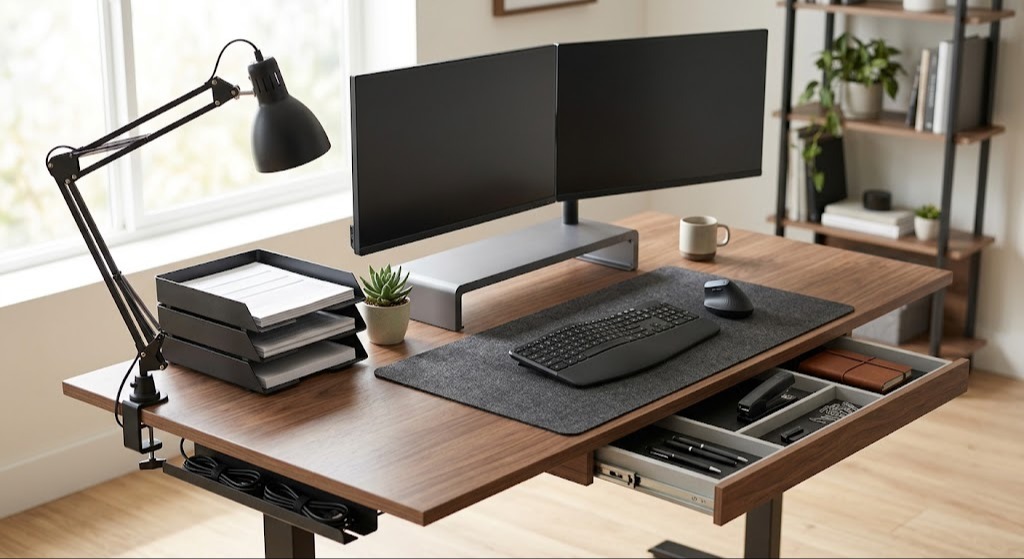
Office desk essentials are the foundational tools, ergonomic furniture, and organizational supplies required to create an efficient, healthy, and productive workspace. By optimizing human-computer interaction, reducing physical strain, and streamlining daily tasks, these components shift mechanical interactions from conscious effort to automatic habit.
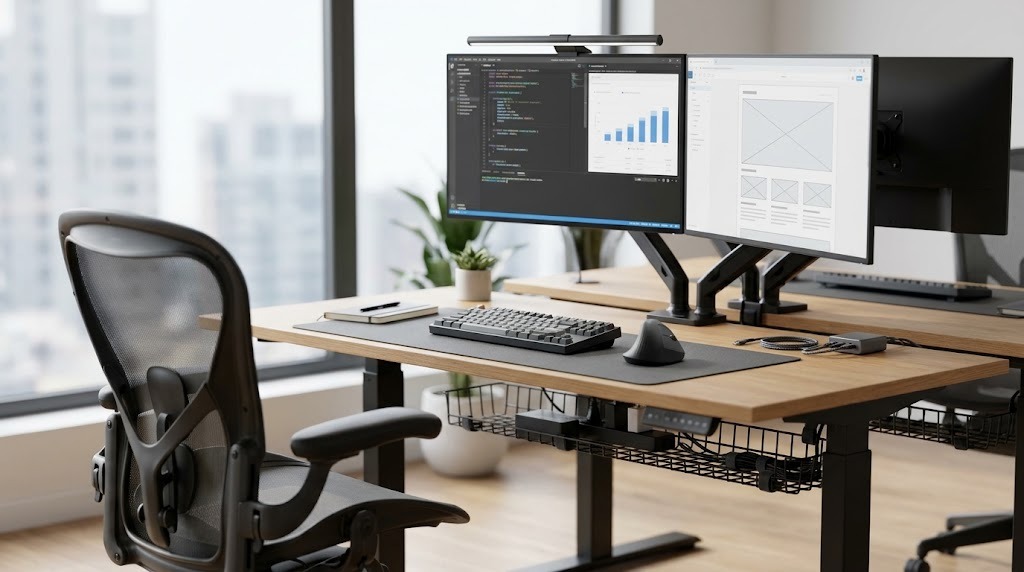
Key Facts:
- Ergonomic desk setups require a physical arrangement starting with seat height, followed by monitor alignment and input device positioning.
- Commercial-grade desk infrastructure should carry ANSI/BIFMA X5.5-2021 certification to ensure structural stability under heavy loads.
- Proper task lighting requires a minimum illuminance of 500 to 1000 lux with a Color Rendering Index (CRI) of 95 or higher.
- Adjusting your monitor so the top third is exactly at eye level eliminates up to 30 lbs of extra cervical spine pressure.
- High-performance power management utilizes 65W–140W Gallium Nitride (GaN) charging hubs paired with under-desk steel cable trays.
How Do You Build an Ergonomic Desk Setup?
Building an ergonomic desk setup requires an inside-out approach starting with seat elevation, moving through display height and peripheral positioning, and ending with environmental lighting. Following this sequence prevents postural compensations and physical strain over long working sessions.
- The Ergonomic Anchor: Place the chair and desk so your feet rest flat on the floor and your thighs are parallel to the ground. Your elbows must sit at a 90-degree to 100-degree angle to prevent shoulder elevation.
- Visual Alignment: Position the primary monitor directly in front of your face, roughly an arm’s length away. The top third of the screen should align with your natural eye level to prevent cervical flexion.
- The Work Zone: Place your keyboard and mouse within immediate, relaxed reach. Extending your arms forward to type strains the upper back and neck.
- Primary and Secondary Storage: Keep high-frequency items (pens, notebooks) within immediate arm’s reach. Relegate secondary, less-frequent items to drawers or secondary shelving to preserve the active work surface.
What Are the Core Categories of Desk Gear?
Desk gear is divided into three functional layers: physical infrastructure, visual interfaces, and input tools. Balancing these categories ensures physical comfort, visual clarity, and electrical safety.
| Category | Main Options & Types | Key Technical Specifications | Typical Price Range |
| Desk Infrastructure | Fixed Height, Manual Crank, Dual-Motor Electric | Surface area: Min 48″ x 24″. Height range: 22.6″–48.7″ (BIFMA G1). | $250 – $900+ |
| Ergonomic Seating | Task Chairs, Ergonomic Mesh, Executive | 3D/4D armrests, adjustable lumbar. BIFMA X5.1 certified. | $150 – $1,500+ |
| Visual Interfaces | Single Ultrawide (34″+), Dual Monitors (27″) | Resolution: 1440p to 4K. Refresh rate: 60Hz – 120Hz. | $150 – $800 |
| Input Devices | Mechanical Keyboards, Vertical Mice | Connectivity: 2.4GHz + BT. Actuation force: 45g-60g. | $45 – $200 |
| Desk Lighting | LED Desk Lamps, Monitor Screenbars | Brightness: 500–1000 lux. Temp: 2700K–6500K. | $40 – $180 |
| Power & Cables | Steel Wire Trays, GaN Hubs, Surge Protectors | Minimum 4000 Joules. 65W–140W USB-C PD. | $30 – $120 |
Which Display Setup Should You Choose?
Choosing the right display setup depends on whether your workflow requires uninterrupted horizontal timelines or dedicated, separated reference windows.
Single Ultrawide Monitor
A single 34-inch or larger ultrawide monitor eliminates center bezels and streamlines your desk footprint.
- Pros: Requires only one monitor arm and a single display cable, creating a minimalist aesthetic. Ideal for video editing timelines and large spreadsheets.
- Cons: Harder to cleanly full-screen applications without utilizing third-party window management software. Grants less overall vertical screen real estate compared to dual screens.
Dual Monitor Setup
Using two 24-inch or 27-inch monitors creates dedicated physical boundaries between active workspaces.
- Pros: Exceptional for native window snapping. You can easily dedicate one screen entirely to reference material (like code documentation) and the other to active work.
- Cons: Placing the bezels directly in your center field of view forces constant neck rotation. Doubles the necessary cable management and requires heavy-duty dual gas-spring arms.
How Should You Light Your Workspace?
You should light your workspace using asymmetrical optics that illuminate the desk surface without casting glare onto your screen. Proper illumination metrics require at least 500 lux to prevent visual fatigue.
Standard Desk Lamp
Traditional architect swing-arm lamps provide wide coverage but demand physical surface space.
- Pros: Highly adjustable, casting light across a wide physical workspace. Offers numerous aesthetic and styling options.
- Cons: Heavy bases take up valuable desk surface space. Improper positioning frequently causes intense screen glare and pupil fatigue.
Monitor Screenbar
A monitor screenbar (or light bar) mounts directly on top of the display, offering a zero-footprint lighting solution.
- Pros: Features an asymmetrical optical design that lights the keyboard and desk pad without reflecting off the monitor glass. Dramatically reduces eye strain.
- Cons: Cannot be easily repositioned to illuminate paperwork far off to the side of the primary work zone.
How Should You Customize Gear by Role?
Customizing desk essentials by role requires tailoring your equipment to match the specific cognitive, tactile, and visual demands of your daily work.
The Remote Professional (Administrative)
General administrative work requires seamless transitions and all-day postural support. Prioritize a highly adjustable ergonomic mesh chair and an external 1080p web camera with an integrated ring light. A dual-device wireless keyboard and mouse combo is essential to jump seamlessly between a work-issued laptop and a personal computer.
The Creative Power User (Design/Video)
Creative workloads demand precise visual geometry and tactile feedback. Focus your budget on a color-accurate 4K monitor (minimum 99% sRGB), mounted on a gas-spring arm to clear surface clutter. Pair this with a dedicated macro pad, a mechanical shortcut keyboard, and a large linoleum desk mat to smooth out precise mouse tracking. Skip felt mats here; they cause sliding resistance and pill over time.
The Minimalist Developer (Coding/Data)
Data analysis and software development require deep focus and minimal visual distraction. Invest in a single 34-inch ultrawide screen featuring built-in USB-C hub functionality, which charges the laptop and handles display data over a single cable. Utilize an under-desk mounting bracket to hide the computer entirely, and employ a vertical ergonomic mouse to prevent repetitive strain injury (RSI).
What Are the Most Common Setup Mistakes?
The most common setup mistakes involve improper physical geometry, poor cable management, and ignoring material degradation. Fixing these structural errors instantly upgrades both aesthetics and physical comfort.
- The “Cable Tsunami”: Letting power blocks hang freely strains device ports and accumulates dust.
- The Fix: Mount a heavy-duty steel wire tray underneath the desk surface. Use hook-and-loop wrap ties rather than plastic zip ties to allow for easy cable adjustments.
- Improper Monitor Height: Setting screens too low forces a forward head posture, which adds up to 30 lbs of extra pressure on the cervical spine.
- The Fix: Stack the monitor on a riser or an adjustable arm until your eyes naturally align with the top edge of the panel.
- Neglecting Visual Geometry: Placing a desk directly facing a bright window causes extreme backlighting, leading to severe pupil fatigue.
- The Fix: Position your desk perpendicular to windows. Use a screenbar to match ambient room brightness and shift color temperatures to warmer ranges ($2700\text{K}\text{–}3000\text{K}$) in the evening.
- Selecting Porous Desk Mats: Buying felt desk pads for their aesthetic warmth often leads to operational friction.
- The Fix: Felt is highly porous, stains easily, and pills under mouse movement. Swap to leather or linoleum mats for frictionless tracking and easy maintenance.
Frequently Asked Questions
How much should I budget for a complete desk setup?
A fully optimized, ergonomic desk setup typically costs between $600 and $2,000. Entry-level setups combining fixed desks and standard mesh chairs sit at the lower end, while premium electric sit-stand desks (BIFMA compliant) and executive seating push toward the upper boundary.
Does my desk need to be ANSI/BIFMA certified?
Yes, if you use the desk for more than four hours a day. ANSI/BIFMA X5.5-2021 certification ensures desk and table products meet strict, independent testing standards for structural stability, durability, and safety under heavy equipment loads.
What is the ideal lighting temperature for productivity?
During peak daylight hours, set your task lighting between $4000\text{K}$ and $5000\text{K}$ to promote alertness and concentration. In the late afternoon and evening, lower the color temperature to $2700\text{K}\text{–}3000\text{K}$ to reduce eye fatigue and protect your natural sleep cycle.
Can a vertical mouse actually prevent wrist pain?
Yes, vertical mice place your forearm in a neutral “handshake” position rather than forcing pronation (twisting the wrist flat). This alignment significantly reduces tension in the carpal tunnel and forearm flexors, making it a critical intervention for preventing repetitive strain injury (RSI).
How big should my desk surface be for dual monitors?
A dual-monitor setup requires a minimum desk surface area of 48 inches wide by 24 inches deep. This footprint provides enough horizontal space for two 27-inch displays and adequate depth to keep the monitors an arm’s length away from your face.