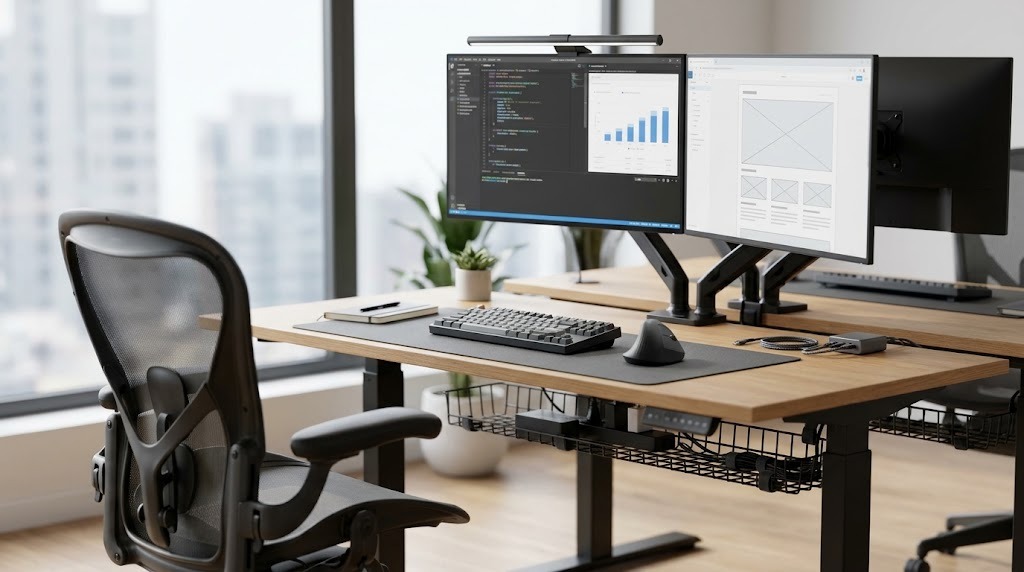
An office workstation comprises the physical furniture, digital displays, and input peripherals that form an employee’s immediate working environment. Optimizing these essentials according to biomechanical standards prevents repetitive strain injuries (RSIs), maximizes daily cognitive output, and ensures long-term physical health.
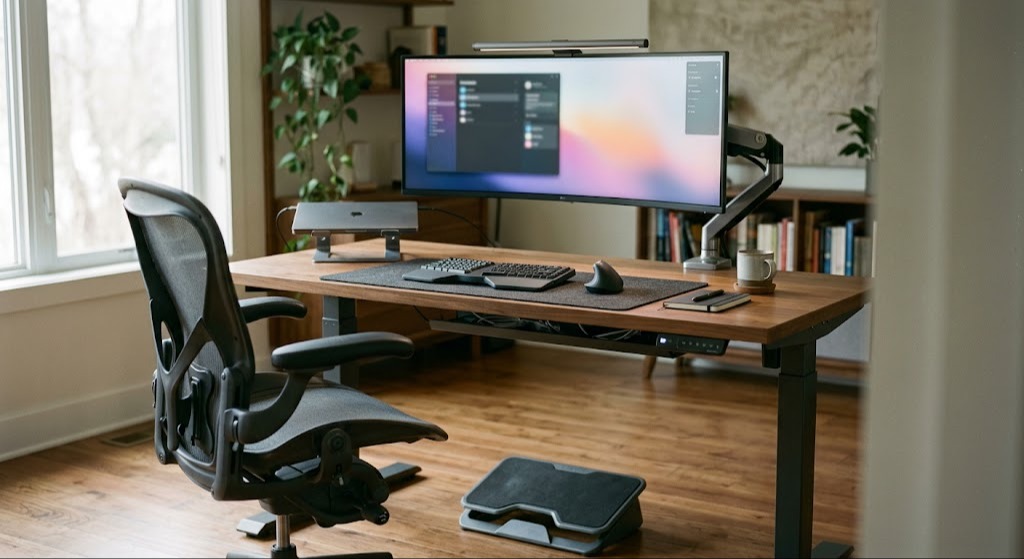
Key Facts:
- A biomechanically sound workstation requires a 90-to-100 degree joint angle at the hips, knees, and elbows.
- Standard commercial-grade desks and chairs are built to last 7 to 12 years, while digital peripherals typically require replacement every 4 to 6 years.
- Monitor screens should sit 20 to 30 inches away, with the top bezel exactly at or slightly below eye level.
- Standing desks should ideally accommodate the 5th to 95th percentile of users, requiring a height adjustment range of 22 to 48 inches.
- OSHA guidelines prioritize engineering controls-like adjustable desks and monitor arms-over administrative controls to mitigate workplace injury risks.
How Does an Ergonomic Workstation Ecosystem Function?
An effective office workstation functions as a cohesive ergonomic ecosystem designed to minimize physical stress and cognitive friction. It works by aligning the human body’s natural posture with mechanical and digital interfaces. When configured correctly, this system distributes body weight evenly across supported surfaces, maintains neutral joint angles, optimizes focal distances to reduce ocular strain, and places high-frequency tools within immediate physical reach. The goal is to eliminate static loading-the continuous muscle tension required to hold an awkward posture-which is the primary driver of workplace musculoskeletal disorders.
What Are the Core Workstation Essentials and Their Costs?
Workstation essentials are categorized into four foundational groups: seating, surfaces, visual infrastructure, and input devices. Investing in ANSI/BIFMA-certified components ensures the hardware has passed rigorous durability and safety testing for commercial environments.
Core Furniture: Chairs and Desks
The foundation of any setup relies on support and adjustability.
- Ergonomic Chairs: High-end models must feature multi-axis armrests, dynamic lumbar tracking, and seat-pan depth adjustments. They should support a 2-inch gap behind the user’s knees when seated. Expect to pay between $300 and $1,800. Look for ANSI/BIFMA X5.1 compliance for guaranteed structural durability.
- Sit-Stand Desks: Motorized adjustable-height surfaces allow seamless transitions between postures. The industry standard requires a travel range of 22 to 48 inches to fit the vast majority of the workforce. Typical pricing ranges from $250 to $1,500. Avoid glass tops to minimize glare, as recommended by OSHA standards.
Visual Infrastructure: Monitors and Mounts
Display quality directly impacts cognitive fatigue and neck posture.
- Monitors: Professional setups require high-resolution displays designed to reduce visual fatigue. The baseline is a 4K resolution at 27 to 32 inches, or a 1440p ultra-wide configuration. Refresh rates should be a minimum of 60Hz, ideally 120Hz for smoother scrolling. Prices range from $200 to $1,200.
- Monitor Arms: Mechanical articulated arms clamp to the desk, freeing up footprint space while providing precise height, tilt, and rotation control. Desk clamp clearance typically requires 0.4 to 2.5 inches of desktop thickness. Prices range from $40 to $300.
Input Devices: Keyboards and Mice
Neutral wrist alignment is the primary defense against Carpal Tunnel Syndrome.
- Ergonomic Keyboards: Split layouts, column-staggered designs, or tented boards eliminate wrist pronation (twisting) and ulnar deviation (bending outward). A 5 to 15-degree tenting angle is optimal for most users. Prices range from $50 to $350.
- Mice: Vertical mice or trackballs allow a neutral “handshake” grip, preventing forearm twisting. Premium vertical models often utilize a precise 57-degree slope. Prices range from $30 to $120.
How Do You Set Up a Workstation Step-by-Step?
To set up a highly productive, biomechanically sound workstation, follow this sequential sequence. Order is critical; adjusting your monitor before your chair will force you to redo the entire process.
- Adjust Seat Height First: Sit fully back in the chair so your lumbar spine is supported. Lower or raise the seat until your feet rest completely flat on the floor (or a stable footrest) and your thighs are parallel to the ground.
- Set Desk Height: Relax your shoulders completely. Bend your elbows at a 90-degree angle. Adjust the desk surface up or down until it aligns perfectly with the underside of your forearms.
- Position the Monitor: Place the screen exactly an arm’s length away (roughly 20 to 30 inches). Align the top third of the screen with your eye level so your neck remains completely straight when reading the center of the screen.
- Arrange Input Devices: Position the keyboard and mouse close together directly in front of you. Keep them at a distance where your upper arms remain relaxed near your torso, preventing forward reaching.
- Optimize Environmental Lighting: Place your monitor perpendicular to windows to eliminate screen glare, and introduce diffused, warm task lighting to prevent eye strain during darker hours.
Which Workstation Archetype is Best for Your Role?
There is no single perfect setup; the ideal configuration depends entirely on the specific demands of the user’s daily workflow.
| Archetype Component | Pros | Cons | Best For |
| Fixed Desk + Ergo Chair | Highly stable; cost-effective; predictable wire management. | Promotes sedentary behavior; harder to share between vastly different users. | Standard corporate environments and budget-conscious home setups. |
| Sit-Stand Desk + Standard Chair | Reduces lower back compression; accommodates multiple users easily. | Premium cost; cables must stretch safely; over-standing causes foot fatigue. | Active professionals and multi-user hot-desking environments. |
| Dual Monitor Array | Maximum distinct screen real estate; excellent for side-by-side app comparisons. | Bezel split sits right in center vision; increases necessary neck turning. | Data analysts, programmers, and finance professionals. |
| Single Ultra-Wide Display | Seamless visual field; easier cable routing; only requires a single GPU connection. | Window management requires third-party layout software (e.g., PowerToys). | Creative editors, designers, and project managers. |
| Hybrid Docking Station | Ultimate portability; allows seamless transition from office to home. | Requires purchasing duplicate peripherals; laptop screens are inherently un-ergonomic. | Remote workers and field sales representatives. |
Expert Recommendations by Persona
- The Remote Knowledge Worker: Focus heavily on a reliable mid-tier motorized standing desk paired with a fully adjustable ergonomic chair. You do not need a $1,000 monitor; prioritize high-quality task lighting and a comfortable chair to prevent fatigue during long home shifts.
- The High-Data Professional (Coder / Analyst): Prioritize a high-density screen setup-such as a 34-inch ultra-wide or dual 27-inch 4K panels-paired with a mechanical split keyboard. The split keyboard is vital to mitigate the high-volume typing strain inherent in coding.
- The Creative Professional (Designer / Editor): Invest primarily in a color-accurate, high-IPS monitor alongside a heavy-duty mechanical monitor arm for swift screen repositioning. A highly stable, wide fixed desk is often preferable to a cheap standing desk to prevent micro-wobbles during precise stylus drawing workflows.
What Are the Most Common Setup Mistakes?
Even with premium equipment, incorrect usage negates the ergonomic benefits. Fixing these behavioral and structural failures is completely free.
- Tucking feet under the chair: This constricts blood flow behind the knees and forces a slouched, anterior pelvic tilt.
Fix: Keep feet flat in front of you, or use an angled footrest if the desk cannot lower enough. - Placing laptops directly on the desk: This forces a continuous downward head tilt, straining the cervical spine (often called “tech neck”).
Fix: Always raise the laptop on a dedicated stand so the screen is at eye level, and use an external keyboard and mouse. - Leaning forward to read text: This strains the eyes and pulls the heavy head out of alignment with the spine.
Fix: Do not move closer; instead, increase the software scaling factor in your OS display settings (e.g., to 125% or 150%). - Unstable Standing Desks: Wobble at standing height ruins concentration.
Fix: Re-distribute heavy items (like desktop towers) closer to the lifting columns rather than the center or outer edges, and verify all frame bolts are tightened. - Over-Standing: Standing all day is just as harmful as sitting all day.
Fix: Adopt the Cornell University “20-8-2” rhythm: 20 minutes sitting, 8 minutes standing, and 2 minutes moving.
Frequently Asked Questions
How much should a complete office workstation cost?
A high-quality, ergonomically sound workstation typically costs between $800 and $2,500. This includes a commercial-grade chair ($400), a motorized desk ($500), a 27-inch monitor ($300), and ergonomic peripherals ($150). Budgeting below this often results in replacing failed components within two years.
Do I need an ANSI/BIFMA certified chair?
For commercial environments, yes. ANSI/BIFMA certification means the chair has passed rigorous, standardized third-party testing for structural integrity, load-bearing capability, and safety. For home users, it acts as a strong indicator that the chair will survive a decade of daily use, unlike cheap imported alternatives.
Are standing desks actually better for you?
Standing desks are only better if used to facilitate movement. Replacing static sitting with static standing merely shifts the strain from your lumbar spine to your knees and feet. Their true value lies in allowing users to easily change postures throughout the day, preventing muscle fatigue.
Why do I get eye strain even with a good monitor?
Eye strain is often caused by incorrect ambient lighting rather than the monitor itself. If the room is dark and the screen is at 100% brightness, your eyes are fighting extreme contrast. Furthermore, users forget to blink while staring at screens. Follow the 20-20-20 rule: every 20 minutes, look at something 20 feet away for 20 seconds.