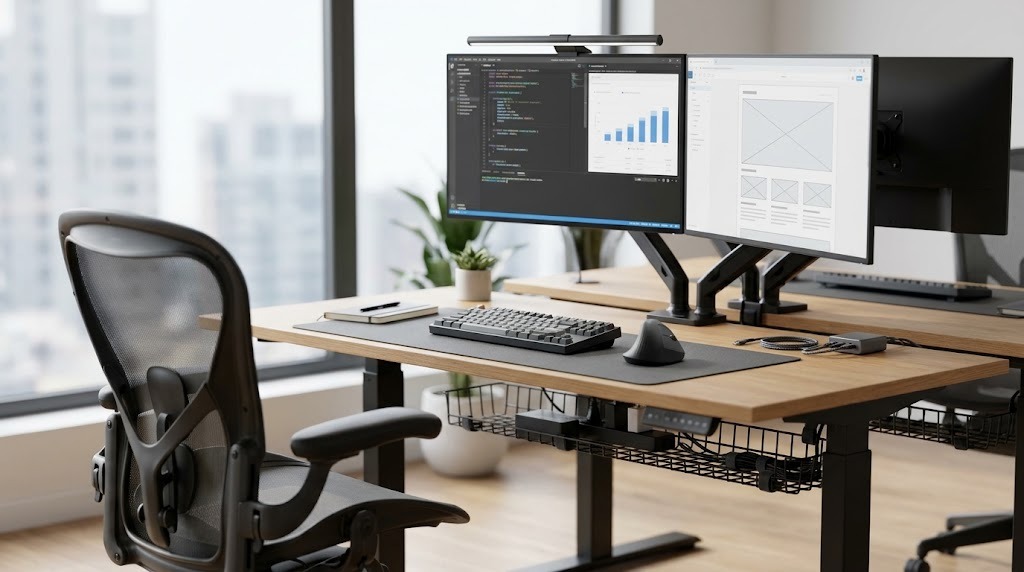
An office workspace essential is any targeted piece of equipment, ergonomic furniture, or environmental control tool required to maintain physical health and maximize digital output in a professional environment. Properly selecting and integrating these essentials transforms a basic desk into a high-performance ecosystem, bridging the gap between biological comfort and computational efficiency.
Key Facts / At a Glance:
- Monitor Positioning: The top bezel of your primary display should sit exactly at eye level, positioned 20 to 30 inches (an arm’s length) away.
- Ergonomic Angles: Maintain a 90 to 100-degree bend in your elbows and knees to prevent vascular compression and musculoskeletal strain.
- Lighting Standards: Task lighting should operate between 4000K and 5000K color temperature to optimize cognitive alertness without causing eye fatigue.
- Desk Depth Minimum: High-output setups require a desk depth of at least 30 inches to accommodate ergonomic keyboards and standard monitor focal distances.
- Lifespan Expectations: Premium ergonomic chairs and hardwood desks last 10–12 years, while digital peripherals require replacement every 3–5 years.
How Does the Workspace Ecosystem Work?
A high-performance workspace operates as a tightly integrated ecosystem rather than a collection of random parts. This ecosystem relies on three interacting layers to sustain multi-hour focus blocks without degrading human health or hardware performance.
The Ergonomic Base (Physical)
The physical layer centers on adapting furniture and tools to the human body. High-quality ergonomic task chairs and sit-stand desks dynamically support spinal alignment, eliminate pressure points on the thighs, and prevent static loading on the lower back. This base ensures the body remains pain-free, allowing cognitive resources to focus entirely on the task.
The High-Output Engine (Digital)
The digital layer consists of computational hardware and high-speed peripherals that convert human intent into digital output with zero latency. This infrastructure requires high-resolution displays for visual clarity, docking stations with sufficient bandwidth (like Thunderbolt 4 at 40 Gbps) to prevent bottlenecking, and responsive input devices.
The Environmental Controller (Ambience)
The ambient layer regulates the physical space surrounding the worker. Active acoustic dampening, asymmetrical task lighting, and indoor air quality monitors prevent environmental stressors from eroding cognitive stamina. Proper environmental tuning directly limits cortisol spikes associated with glare, noise, and high CO2 levels.
What Are the Core Office Workspace Essentials?
Selecting the right office workspace essentials requires matching technical specifications to biological needs. The foundational tools are grouped into four non-negotiable categories.
Category 1: Ergonomic Furniture
Ergonomic furniture dictates your posture and directly impacts cardiovascular circulation during the workday.
- Ergonomic Task Chairs: Professional task chairs must feature multi-axis adjustable armrests, dynamic lumbar tracking that targets the L4-L5 vertebrae, and seat-pan depth adjustments. Premium options utilize breathable elastomeric mesh or high-density foam to regulate body temperature.
- Sit-Stand Desks: High-performance motorized desks utilize dual or triple motors with lifting capacities exceeding 200 lbs. They must feature collision avoidance sensors and programmable memory presets for seamless transitions.
- Active Seating: Balance ball chairs, kneeling chairs, and leaning pads engage core stabilization muscles. These are secondary essentials designed for short-duration tasks (30–60 minutes) rather than all-day seating.
Category 2: Compute and Visual Infrastructure
Visual infrastructure dictates how efficiently you process digital information and manage multiple applications.
- Multi-Monitor and Ultra-Wide Displays: Optimal setups utilize 4K (3840×2160) or Dual-QHD panels featuring 99% sRGB color accuracy. IPS or OLED panels provide wide viewing angles essential for multi-screen configurations.
- Monitor Arms: VESA-compliant (75x75mm or 100x100mm) gas-spring articulation arms free up desk space. They provide full tilt, pan, and 360-degree rotation capabilities, allowing users to precisely tune focal distance and eliminate neck craning.
- Docking Stations: Thunderbolt 4 or USB4 hubs centralize cable management. A professional dock handles dual 4K video streams at 60Hz while delivering up to 100W of Power Delivery (PD) to charge the host machine through a single cable.
Category 3: Input Peripherals
Input tools bridge the physical-digital divide; poor selection here directly accelerates Repetitive Strain Injury (RSI).
- Ergonomic Keyboards: Tented mechanical keyboards or split layouts prevent ulnar deviation (bending wrists outward) and pronation (typing flat-handed). Tactile mechanical switches (like Cherry MX Browns) provide physical feedback that reduces bottoming-out fatigue.
- Precision Input Mice: Ergonomic vertical mice rotate the forearm 57 degrees into a neutral “handshake” position, drastically minimizing carpal tunnel risks. Large trackballs are an alternative that eliminates wrist movement entirely.
- Desk Pads: Oversized desk mats constructed from Merino wool felt or waterproof linoleum anchor your peripherals, dampen acoustic reflections from mechanical keyboards, and protect the desk surface.
Category 4: Environmental and Acoustic Controls
Environmental tools optimize your sensory input, extending the duration you can comfortably focus.
- Monitor Desk Lamps (Screenbars): Screenbars feature asymmetrical optical designs that cast light purely onto the desk surface. By eliminating direct screen reflections, they reduce visual glare and eye strain.
- Acoustic Management: Active noise-canceling (ANC) over-ear headphones strip away low-frequency HVAC hums. Dense acoustic PET wall panels dampen high-frequency environmental noise and echo in minimalist rooms.
How to Set Up Your Workspace Essentials
Setting up a high-performance workspace requires a structural sequence from the ground up. Order is critical; misplacing the desk renders cable management and ergonomic tuning impossible.
- Phase 1: Spatial Planning. Measure room dimensions and map power outlets. Place your desk perpendicular to windows to capture natural light while actively avoiding direct screen glare. Ensure a minimum of 40 inches of clearance behind the desk for chair mobility.
- Phase 2: Ergonomic Foundation. Assemble the desk first. Adjust your task chair so your thighs are parallel to the floor and feet rest completely flat. If your feet dangle, introduce an angled footrest.
- Phase 3: Compute and Display Layout. Mount displays on pneumatic arms. Position the primary monitor exactly an arm’s length away, with the top bezel at eye level. Position your keyboard and mouse so your elbows remain tucked at your sides with a 90-degree bend.
- Phase 4: Peripheral and Cable Integration. Route cables using J-channels mounted under the rear edge of the desk. Bundle cords traveling to the floor inside a flexible cable vertebrae spine to prevent physical snags and visual clutter.
- Phase 5: Environmental Tuning. Position your monitor screenbar to illuminate the keyboard zone without spilling light onto the display. Introduce acoustic panels to bare walls immediately behind your microphone to improve video call clarity.
Traditional vs. Ergonomic vs. Dynamic Setups
The effectiveness of your office workspace essentials varies wildly depending on your chosen structural philosophy.
| Attribute | Traditional Setup | Ergonomic Setup | Dynamic Setup |
| Primary Components | Fixed 29″ desk, standard foam office chair, laptop flat on desk. | Electric sit-stand desk, fully adjustable mesh task chair, pneumatic monitor arms. | Walking treadmill desk, active balance stool, modular peripheral mounts. |
| Pros | Highly cost-effective; requires zero configuration time; uniform corporate appearance. | Drastically reduces musculoskeletal strain; customizable to exact body dimensions. | Maximizes daily non-exercise thermogenesis (NEAT); breaks sedentary patterns. |
| Cons | Accelerates physical fatigue; triggers chronic back/neck pain; zero adjustability. | Requires high upfront financial investment; demands precise initial tuning. | Imposes high cognitive load for precision tasks (like graphic design); massive physical footprint. |
| Transition Difficulty | Zero | Low to Moderate (Requires 1-2 weeks of posture adaptation) | High (Requires pacing strategy to avoid rapid physical fatigue) |
Which Should You Choose?
Choose an Ergonomic Setup for 95% of knowledge work, coding, and design. Reserve the Dynamic Setup for prolonged reading, video consumption, or routine emails where precision mouse input is not required. Avoid the Traditional Setup entirely if you work more than 4 hours a day at a computer.
What Are Typical Prices and Lifespans for Workspace Gear?
Allocating budget correctly prevents overspending on aesthetic items while underfunding critical biomechanical support.
- Budget Tier ($300 – $600): Consists of a fixed desk, entry-level mesh chair, and a basic 1080p external monitor. Lifespan: 2–3 years before foam degrades or components fail.
- Mid-Range Tier ($1,200 – $2,500): Includes a dual-motor standing desk, mid-tier ergonomic chair with adjustable lumbar, a Thunderbolt dock, and a single 4K monitor. Lifespan: 5–8 years.
- Premium/Enterprise Tier ($4,000+): Features flagship ergonomic task chairs (e.g., Herman Miller Aeron), solid hardwood standing desks, dual-arm 4K displays, and custom acoustics. Lifespan: 10–12 years, frequently backed by matching warranties.
What Are the Most Common Workspace Setup Mistakes?
Even with premium office workspace essentials, improper implementation negates their benefits.
- Buying the Chair for Plushness Over Support: Soft, over-padded executive chairs cause the pelvis to tilt backward. This flattens the natural lumbar curve, transferring the upper body’s weight directly onto the lower spinal discs, guaranteeing long-term pain.
- Chasing Desk Aesthetic at the Cost of Depth: Selecting a shallow desk (less than 24 inches deep) forces your monitor too close to your eyes. This creates severe visual convergence fatigue and leaves zero room for keyboard wrist clearances. Always aim for a minimum of 30 inches of depth.
- Ignoring Under-Desk Clearance Space: Jamming file cabinets, subwoofers, or storage boxes directly beneath your desk prevents your legs from moving freely. This traps you in a static posture, reducing blood flow and making proper ergonomic seating impossible.
How Do I Troubleshoot Common Workspace Issues?
Workspace friction usually stems from a misalignment between your body, the hardware, and the environment.
- Issue: Chronic Lower Back or Neck Pain.
- Fix: Check your chair’s lumbar support height—it must sit directly in the inward curve of your lower spine (L4-L5 vertebrae). Raise your monitor arm until your eyes rest naturally on the top third of the display panel. Looking down for extended periods places up to 60 lbs of relative pressure on the cervical spine.
- Issue: Frequent Peripherals Disconnecting or Dropping Signal.
- Fix: Your docking station is likely exceeding its USB bandwidth or power limits. Route high-draw peripherals (like external NVMe drives or 4K webcams) directly to your host machine, or swap out generic USB-C cables for certified, active Thunderbolt 4 cables rated for 40 Gbps.
- Issue: Constant Afternoon Eye Strain and Headaches.
- Fix: Eliminate direct window glare immediately behind or in front of your display. Install an asymmetrical monitor screenbar to balance ambient room brightness against the monitor’s backlight. Enforce the 20-20-20 rule: every 20 minutes, look at an object 20 feet away for 20 seconds to relax the ciliary muscles in your eyes.
Expert Setup Recommendations by Profession
Office workspace essentials must adapt to the specific workflows and outputs of the professional using them.
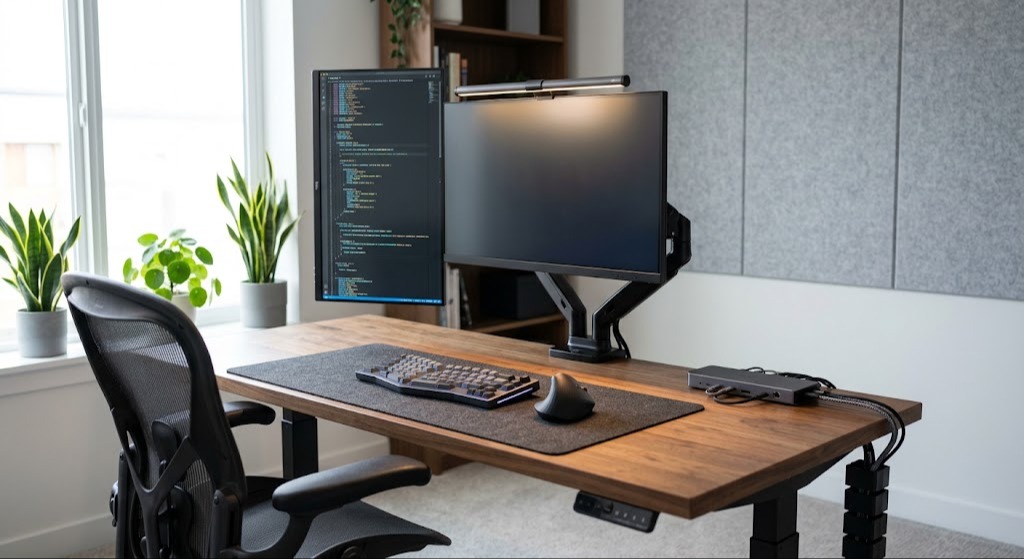
- The High-Volume Software Developer / Data Engineer:Requires massive screen real estate and rapid text input. A 30″ x 72″ dual-motor standing desk is required to support heavy gear loads. Deploy dual 27-inch 4K monitors on independent gas-spring arms, keeping one rotated vertically for long code or log reviews. Utilize a split mechanical keyboard with tactile switches to minimize wrist strain during marathon coding sessions.
- The Remote Creative / Video Editor / Designer:Requires visual perfection and high-speed data transfer. Utilize a single 32-inch or 42-inch color-calibrated display (OLED or IPS Black) featuring broad DCI-P3 color gamut coverage. Pair a large glass trackpad with a dedicated macro pad or console wheel for fast timeline scrubbing. Use high-fidelity, open-back studio headphones or calibrated near-field monitor speakers for audio precision.
- The Minimalist Corporate Executive / Knowledge Worker:Requires seamless connectivity and a clean, distraction-free aesthetic. A premium mesh task chair featuring auto-weight sensing tilt mechanisms removes the need for manual knob adjustments. A single-cable Thunderbolt 4 dock keeps the desktop completely clear of cord clutter, allowing instant laptop connection. Finish with a sleek aluminum monitor light bar controlled via a wireless desktop dial.
Frequently Asked Questions (FAQ)
Are standing desks actually better for you than sitting?
Standing desks are not inherently better; static standing causes lower body joint fatigue and blood pooling just as static sitting causes back strain. The health benefit comes from the transition between sitting and standing. Alternating postures every 60 to 90 minutes prevents static muscle loading and boosts circulation.
Do I need a dual monitor setup to be productive?
No, dual monitors are only essential if your workflow requires actively referencing one document while writing in another. For many writers and single-task creatives, a single large ultrawide monitor (34 inches) is superior because it eliminates the physical bezel gap and reduces the neck rotation required by dual screens.
What is the most important essential to invest in first?
The ergonomic task chair is the most critical investment. A premium chair directly protects your spine, pelvis, and circulation. Upgrading your monitor or desk will not improve your productivity if chronic back pain forces you to stop working after three hours. Always fund your seating before your screens.
How do I manage cables on a motorized standing desk?
You must introduce slack. Route all peripheral cables into a power strip mounted directly underneath the desk surface, so only a single thick power cord runs from the desk to the wall outlet. Use a flexible cable spine to protect that single cord as the desk raises and lowers, preventing hardware from being ripped off the surface.