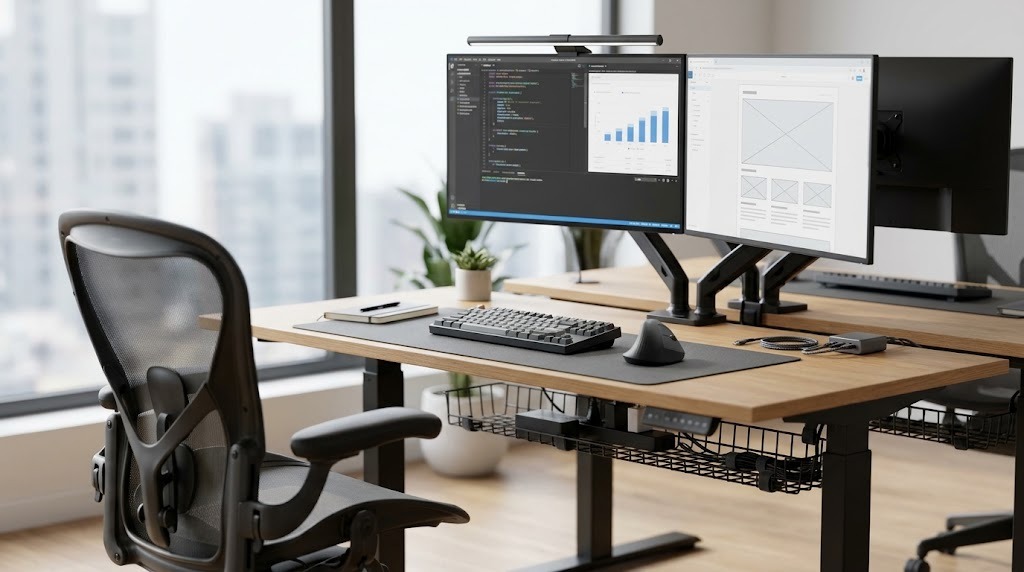
The essential office must haves comprise an ergonomic chair certified to ANSI/BIFMA standards, a dual-motor height-adjustable desk, an eye-level display yielding 110 to 220 pixels per inch, an input system preventing ulnar deviation, and an asymmetrical 500-lux task light. Together, these tools preserve musculoskeletal alignment, reduce ocular fatigue, and maximize cognitive output across prolonged computational work.
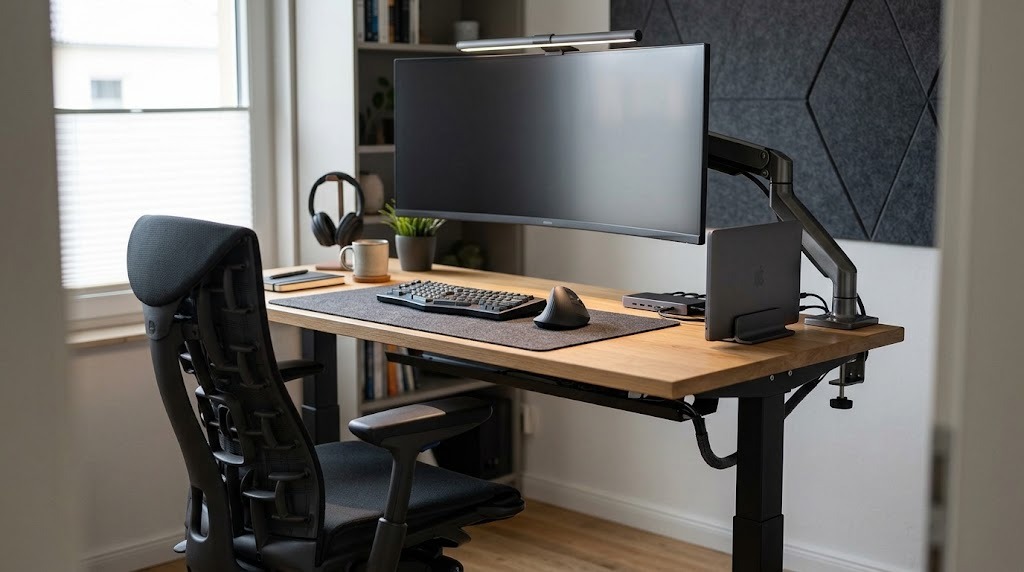
Key Facts: Workstation Optimization at a Glance
- Seating Biomechanics: A 2:1 synchro-tilt mechanism with independent sacral support decreases lumbar intervertebral disc pressure by up to 35% compared to static 90-degree upright posture.
- Sit-Stand Cadence: Optimal posture variation follows the Cornell “20-8-2” rule: 20 minutes sitting, 8 minutes standing, and 2 minutes of moving or stretching.
- Visual Geometry: The top third of the primary monitor panel must align precisely with horizontal resting eye gaze at a focal distance of 20 to 30 inches (arm’s length).
- Acoustic and Environmental Thresholds: Workstation ambient sound levels should not exceed 45 dBA, with desktop task illumination maintaining 500 lux at a Color Rendering Index (CRI) greater than 90.
- Electrical Integrity: High-performance workstations require surge protection certified under UL 1449 (Type 3) with a minimum energy absorption rating of 2,000 Joules and a clamping voltage under 400V.
What Are the Non-Negotiable Ergonomic Office Must Haves?
Non-negotiable ergonomic office essentials are tools engineered to stabilize the musculoskeletal system in a neutral alignment, thereby eliminating sustained static load on soft tissues. Setting up a high-performance workstation requires matching physical furniture adjustments to your anthropometric dimensions rather than forcing the body to conform to static surfaces.
       Visual Plane: Eye level matches top 1/3 of screen
       [Screen] <--- 20" to 30" Focal Distance ---> [User Eye]
          |                                            |
          |                                      Neutral Neck (<15° tilt)
  Height-Adjustable                              Forearms Level (90°-100°)
   Desktop Surface <============================ [Elbows at Side]
          |                                            |
          |                                      Open Hip Angle (90°-105°)
     Floor Level   <============================ [Feet Flat / Planted]
The Biomechanical Foundation: Ergonomic Seating Architecture
An ergonomic office chair must maintain the lumbar spine’s natural inward lordotic curve while accommodating active pelvis repositioning. Static chairs restrict pelvic tilt, transferring body weight directly onto the L4-S1 vertebrae and increasing muscular tension across the erector spinae.
High-performance seating systems depend on five core mechanical adjustments:
- Pneumatic Cylinder and Seat Height: The seat pan must elevate or lower so that the user’s feet rest flat on the floor with knee joints bent between 90 and 100 degrees. Dangling feet compress the femoral vein under the anterior thighs, impeding venous return and causing lower extremity edema.
- Seat Pan Depth Slider: Proper depth allows the user’s lower back to firmly engage the lumbar support while leaving a clear 2-to-3-finger gap (approximately 1.5 to 2 inches) between the front edge of the seat cushion and the popliteal fossa (the back of the knees).
- Synchronous Tilt Mechanism (2:1 Ratio): Synchro-tilt systems recline the backrest at twice the rate of the seat pan. This geometry opens the pelvic angle without lifting the front of the seat pan off the floor, preventing circulation restriction during deep recline.
- Independent Lumbar/Sacral Support: Sacral stabilization (such as Herman Miller’s PostureFit SL or Steelcase’s Core-Centric system) rotates the pelvis forward, preventing slouching far more effectively than basic lumbar pads that merely push into the lower spine.
- Multi-Directional (3D/4D) Armrests: Armrests must adjust across height, width, depth, and pivot angle. When forearms rest flat, the shoulders must remain naturally depressed without shrugging or winging scapulae.
+------------------+-----------------------+-----------------------+-----------------------+
| Chair Component  | Entry-Tier ($150-$400)| Mid-Tier ($400-$800)  | Elite ($800-$1,800+)  |
+------------------+-----------------------+-----------------------+-----------------------+
| Mechanism        | Center-tilt or swivel  | Weight-activated      | True 2:1 Synchro-tilt |
|                  | lock (single axis)    | synchro-tilt          | with forward tilt     |
+------------------+-----------------------+-----------------------+-----------------------+
| Lumbar Control   | Fixed or height-only  | Height + depth        | Independent sacral +  |
|                  | foam wedge            | mechanical pad        | dynamic torsional back|
+------------------+-----------------------+-----------------------+-----------------------+
| Armrest Geometry | Fixed or 1D (height)  | 3D (height, pad slide,| 4D (width, 360-pivot, |
|                  |                       | forward/back)         | full height lock)     |
+------------------+-----------------------+-----------------------+-----------------------+
| Primary Material | Low-density cut foam /| High-resilience molded| Elastomeric pellicle  |
|                  | bonded polyester mesh | foam / technical knit | mesh / self-repairing |
+------------------+-----------------------+-----------------------+-----------------------+
| Durability &     | 1–3 years;            | 5–7 years;            | 12-year 24/7 rating;  |
| Warranty         | BIFMA compliance rare | ANSI/BIFMA X5.1       | ANSI/BIFMA X5.11      |
+------------------+-----------------------+-----------------------+-----------------------+
Height-Adjustable Workstations: Dynamic Movement Standards
A height-adjustable standing desk combats sedentary metabolic deceleration by enabling seamless postural shifts throughout the workday. Sustained standing creates just as many vascular problems—such as venous pooling and plantar fasciitis—as unbroken sitting creates spinal compression.
The Cornell University Human Factors and Ergonomics Laboratory developed the clinical standard for workstation posture variation: The 20-8-2 Rule. For every 30-minute block of office work:
- Sit in a neutral posture for 20 minutes.
- Stand at an ergonomically calibrated desk height for 8 minutes.
- Ambulate, walk, or stretch for 2 minutes.
[====== 20 Min: Neutral Sitting ======] -> [=== 8 Min: Standing ===] -> [= 2 Min: Stretch =]
When evaluating electric standing desks, structural mechanics dictate performance. Two-stage lifting columns (two nested telescoping tubes) offer height ranges between 27 and 45 inches, which fails to accommodate users under 5’4″ in a seated position or users over 6’2″ when standing.
Three-stage columns (three nested telescoping tubes) expand the range from 22 to 49 inches, supporting the 5th to 95th human percentiles per BIFMA G1-2017 standards. Dual-motor architectures powered by synced internal microcontrollers (such as Linak or Jiecang linear actuators) lift loads exceeding 300 lbs smoothly at speeds over 1.3 inches per second, staying under a 50 dB operating sound limit.
Expert Insight (The Crossbar Physics Rule): Desktop converters that sit on an existing table shift the system’s center of gravity forward, causing cantilever bounce when typing. To eliminate wobble on full standing desks at heights above 40 inches without a traditional knee-knocking crossbar, choose frames designed with wedge-shaped structural leg-to-foot brackets, C-frame offset feet, and thick 4mm rolled steel wall columns.
How Should You Structure Your Visual Computing Ecosystem?
Visual computing hardware must deliver clear text without forcing the user to lean the head forward, which strains the cervical spine. Every 1-inch forward deviation of the skull adds roughly 10 pounds of effective gravitational weight to the deep neck extensors.
High-Density Displays and PPI Calibration
Screen resolution must always be evaluated relative to panel size to achieve the target Pixels Per Inch (PPI). Running a 27-inch monitor at standard 1080p produces a coarse 81 PPI. This forces ocular muscles to constantly work to bring fuzzy font edges into focus, causing headaches and visual fatigue.
Coarse Resolution (81 PPI)   --> Ciliary Eye Muscles Constantly Strain to Read Fuzz
Calibrated Retina (110-218 PPI) --> Sharp Subpixel Rendering; Zero Ocular Accommodation
- Standard High-Density Baseline (108-110 PPI): Achieved on a 27-inch 1440p (2560×1440) or a 34-inch ultrawide (3440×1440). This density renders text cleanly at native 100% OS scaling on both Windows and macOS, preserving full GPU efficiency without requiring software raster scaling.
- Retina High-Density Standard (160–218 PPI): Achieved on a 27-inch 4K (3840×2160, 163 PPI) or 27-inch 5K (5120×2880, 218 PPI).
- Operating System Scaling Considerations: A common pitfall occurs when pairing macOS with 27-inch 4K monitors. Because macOS renders high-DPI interfaces at native 5K ($2\times$ scaling) and then downsamples to 4K, users may experience subtle UI blur and a minor GPU processing hit. For Apple hardware, native 110 PPI (such as 34-inch ultrawide) or true 218 PPI (5K panels like the Apple Studio Display or Samsung ViewFinity S9) deliver optimal text clarity.
Monitor Mounting and Dual vs. Ultrawide Geometries
A fixed monitor pedestal forces the screen below the natural ocular resting line, causing the user to drop the chin and round the shoulders. Gas-spring or mechanical counter-balance monitor arms allow dynamic three-axis positioning: height, focal depth, and tilt angle.
+-----------------------+-----------------------------------+-----------------------------------+
| Attribute             | Dual 27-Inch Displays (16:9 x 2)  | Single 34–40-Inch Curved Ultrawide|
+-----------------------+-----------------------------------+-----------------------------------+
| Total Horizontal FOV  | ~48 inches across                 | ~32–37 inches across              |
+-----------------------+-----------------------------------+-----------------------------------+
| Bezel Disruption      | Center split directly in line     | Continuous, unbroken canvas       |
|                       | of sight (primary focal zone)     | across the entire display         |
+-----------------------+-----------------------------------+-----------------------------------+
| Window Organization   | Hard physical edges make snap-    | Relies on software partitioning   |
|                       | tiling simple and predictable     | (FancyZones, Magnet)              |
+-----------------------+-----------------------------------+-----------------------------------+
| Cervical Neck Motion  | High lateral panning (up to 60°   | Moderate lateral panning; radius  |
|                       | head rotation across screens)     | curve (1500R–1800R) matches eye   |
+-----------------------+-----------------------------------+-----------------------------------+
| Power & Cable Routing | Requires two video cables, two    | Single Thunderbolt 4 drop with    |
|                       | power bricks, and dual mounts     | internal power delivery (90W+)    |
+-----------------------+-----------------------------------+-----------------------------------+
Monitor arms should clamp directly to the desk frame via a steel-reinforced C-clamp or grommet mount. High-load setups (like ultrawide screens weighing 18 to 30 lbs) require heavy-duty arms with heavy mechanical springs and reinforced tilt joints to prevent the screen from sagging forward over time.
What Input Devices Prevent Musculoskeletal Disorders?
Input devices must keep the hand, wrist, and forearm in a neutral alignment, preventing median nerve compression inside the carpal tunnel and reducing strain on the wrist extensor tendons.
FLAT MOUSE / KEYBOARD:
   [Dorsiflexion Strain]            [Pronation Twist]
   Hand tilted up: >25°             Bones crossed: 90° flat
      __/\______                       ---(Radius)====
     /          \                          (Ulna)=====

NEUTRAL ERGONOMIC INPUT:
   [Level Plane]                    [Vertical Handshake Angle]
   Neutral wrist: 0° angle          Forearm bones parallel: ~57° tilt
   ==============                   /// (Natural Handshake Position)
Neutral-Posture Keyboards
Standard flat keyboards force the typist into two harmful postures: wrist pronation (palms forced completely flat against the desk) and ulnar deviation (wrists angled outward toward the little fingers to fit compact key rows).
- Split Ergonomic Keyboards: Separating the left and right key clusters allows the user’s hands to align directly with the natural width of the shoulders, completely eliminating ulnar deviation.
- Tenting Mechanisms: Elevating the center of the split keyboard between 5 and 15 degrees keeps the forearms in a relaxed, semi-vertical position, reducing pronation stress.
- Low-Profile and Mechanical Switches: Traditional rubber dome membrane keyboards require bottoming out each key with high impact force (60–75 grams). In contrast, mechanical switches actuate smoothly partway through the keypress (around 35–45 grams on linear or light tactile switches), reducing finger impact shock over thousands of daily keystrokes.
Ergonomic Mice and Trackballs
Conventional flat mice hold the user’s forearm in 90-degree internal pronation, which pinches the carpal tunnel against the desk surface during movement.
- Vertical Ergonomic Mice: Modeled after a neutral “handshake” grip (typically angled at 57 degrees, as seen on the Logitech MX Vertical and Lift), these designs orient the hand vertically. This stance rests the weight along the outside edge of the hand, lifting the median nerve off the desk surface.
- Precision Thumb/Finger Trackballs: For users dealing with shoulder or rotator cuff issues, stationary trackballs let you navigate screens entirely through finger movement, eliminating all repetitive elbow and shoulder motion.
What Environmental Controls Determine Focus and Endurance?
The physical environment—including lighting, sound, and air quality—directly influences focus, cognitive stamina, and eye comfort throughout the workday.
+-----------------------+-----------------------------------+-----------------------------------+
| Environmental Factor  | Sub-Optimal Baseline              | Clinical Target Spec              |
+-----------------------+-----------------------------------+-----------------------------------+
| Desktop Illuminance   | 100–200 lux (causes pupillary     | 500 lux on active work surface    |
|                       | dilation strain)                  | (conforms to EN 12464-1)          |
+-----------------------+-----------------------------------+-----------------------------------+
| Color Temperature     | Static 2700K (causes daytime      | Dynamic: 4500K–5000K (Daytime) /  |
|                       | lethargy) or fixed cool glare     | 2700K (Evening/Night shift)       |
+-----------------------+-----------------------------------+-----------------------------------+
| Acoustic Level        | >55 dBA (constant background hum, | <40–45 dBA ambient noise floor;   |
|                       | speech distractions)              | Passive sound absorption NRC >0.7 |
+-----------------------+-----------------------------------+-----------------------------------+
| Air Quality (CO2)     | >1,200 ppm (significantly degrades| <800 ppm; continuous HEPA H13     |
|                       | cognitive performance)            | filtration with activated carbon  |
+-----------------------+-----------------------------------+-----------------------------------+
Task Lighting and Asymmetrical Screenbars
Eyestrain occurs when the luminance of a bright monitor clashes sharply with a dim surrounding room. The resulting contrast forces the eye’s ciliary muscles to constantly contract and relax as your gaze shifts between screens, documents, and the desk surface.
WRONG: Monitor Light Bar Tilted Outward  --> Blinds Eyes / Blasts Camera Sensor
RIGHT: Asymmetrical Downward Beam        --> Sweeps Desktop Surface Only; Zero Glass Glare
Asymmetrical monitor light bars (such as the BenQ ScreenBar series) clamp directly to the display bezel and use calibrated internal mirrors to cast light down onto the desk in a clean triangular wedge. This illuminates the keyboard and paperwork without spilling light onto the monitor screen or reflecting into the user’s eyes.
Technical Correction (The Video Call Screenbar Myth): A common misconception is that tilting an asymmetrical screenbar toward yourself works as a key light for video calls. In reality, rotating these light bars forward breaks their optical cutoff, directing harsh glare straight into your webcam lens and your eyes. This causes lens flare, washes out camera sensors, and casts unflattering downward facial shadows.
High-quality video call setups require a separate, diffused key light with a high Color Rendering Index (95+ CRI), elevated at a 45-degree angle above the face to mimic soft, natural illumination.
Acoustic Conditioning and Active Noise Cancellation
High productivity demands minimizing auditory distractions, which reset your working memory and focus cycles. Background speech, HVAC hum, and street noise degrade focus and elevate cortisol levels.
- Closed-Back Active Noise Cancelling (ANC) Headphones: Premium ANC headsets utilize external reference microphones and digital processing to sample environmental noise and generate inverse sound waves, neutralising low-frequency sounds (under 1 kHz) by up to 30 dB.
- Passive Acoustic Damping: Hard, flat surfaces like drywall, hardwood floors, and glass windows bounce sound around the room, creating an echo chamber that ruins audio quality during meetings. Mounting dense, recycled acoustic PET felt panels (with a Noise Reduction Coefficient of NRC $\ge 0.75$) directly behind and adjacent to the monitor absorbs high- and mid-frequency reverberations.
How Do You Build a Reliable Cable Management and Power Infrastructure?
A clean cable setup is more than just visual polish; it prevents ports from flexing, stops power cords from tugging out when your standing desk rises, and protects expensive computing gear from electrical damage.
[Wall Outlet]
      |
      |-- Flexible Slack-Loop (Expands to Desk Peak Height)
      v
[Under-Desk Steel Cable Tray]
      |
      +---> [Type-3 Surge Protector (≥2,000J, Clamping <400V)]
                  |
                  +---> [Thunderbolt 4 Dock] === Single Cable ===> [Laptop]
                  |            |
                  |            +---> DisplayPort ---> [Monitor 1]
                  |            +---> DisplayPort ---> [Monitor 2]
                  |            +---> USB-A Data  ---> [Webcam / DAC]
                  |
                  +---> Dual-Motor Desk Control Box
Follow this four-phase sequence to wire an adjustable workstation:
- Mount Under-Desk Cable Raceways: Bolt an open-wire steel grid or powder-coated steel tray to the underside of the desktop near the rear edge. Avoid adhesive-mounted plastic clips; desktop heat and weight will cause them to fail over time.
- Install a Dedicated Power Strip: Secure a heavy-duty power strip inside the tray. Look for a strip certified to UL 1449 (Type 3) with a surge absorption capacity of at least 2,000 Joules and a clamping voltage under 400V. This routes all individual power bricks to the underside of the desk surface itself.
- Establish a Single Umbilical Line with Slack: Route only one heavy-duty grounded power cable and one shielded Cat6a Ethernet cord from the desk down to the wall outlet. Elevate the standing desk to its maximum operational height, and secure the line leaving enough slack loop so it never catches, pulls, or stretches during movement.
- Deploy a Thunderbolt 4 / USB4 Docking Architecture: Instead of plugging multiple display cables, power cords, and USB devices directly into your computer, run everything into a central Thunderbolt 4 hub (such as the CalDigit TS4). A single high-bandwidth cable then carries video, audio, data, and up to 100W of power back to your machine, keeping the desk surface clean and minimizing port wear.
Archetype Configuration Matrix: Specialized Workstation Blueprints
Workstation demands vary widely depending on computational workflows, physical task requirements, and daily meeting schedules.
+-------------------+-----------------------------------+-----------------------------------+-----------------------------------+
| Hardware Domain   | 1. Software Engineer / Data Lead  | 2. Creative / Colorist / Editor   | 3. Executive / Remote Consultant  |
+-------------------+-----------------------------------+-----------------------------------+-----------------------------------+
| Primary Display   | Dual 27" 1440p (one rotated 90°   | 32" 4K or 5K IPS / Mini-LED       | Single 34" Curved Ultrawide       |
| Architecture      | portrait for compiling/logs)      | (100% DCI-P3, factory calibrated) | (clean desktop, built-in hub)     |
+-------------------+-----------------------------------+-----------------------------------+-----------------------------------+
| Key Seating &     | Dynamic synchro-tilt mesh chair;  | High-resilience contoured foam    | Executive-grade ergonomic chair;  |
| Support Spec      | heavy-duty sacral stabilization   | chair with multi-angle tilt locks | breathable pellicle suspension    |
+-------------------+-----------------------------------+-----------------------------------+-----------------------------------+
| Input Ecosystem   | Split mechanical keyboard (light  | Low-profile tactile keyboard with | Low-profile membrane or quiet     |
|                   | tactile switches) + vertical mouse| dedicated color wheel / tablet    | tactile keyboard + multi-device   |
|                   |                                   | and precision thumb-trackball     | ergonomic mouse                   |
+-------------------+-----------------------------------+-----------------------------------+-----------------------------------+
| Audio-Visual      | Closed-back ANC wireless headset; | Studio reference monitor speakers | High-CRI (95+) diffused LED panel;|
| Pipeline          | directional noise-canceling mic   | (isolated pads) + open-back cans  | 4K webcam + dynamic USB mic       |
+-------------------+-----------------------------------+-----------------------------------+-----------------------------------+
| Target Budget     | $1,800–$3,200                     | $3,000–$5,500                     | $2,000–$3,800                     |
+-------------------+-----------------------------------+-----------------------------------+-----------------------------------+
What Are the Most Common Workspace Design Mistakes?
Setting up a productive office requires avoiding several common design pitfalls that compromise ergonomics and electrical safety:
- Choosing Aesthetics Over Mechanical Adjustability: Buying mid-century accent chairs or minimal writing tables sacrifices basic adjustability. Chairs without adjustable armrests or independent lumbar support can cause severe postural pain, regardless of how attractive they look in the room.
- Using Anti-Fatigue Mats with Flat Foam Construction: Flat kitchen foam mats don’t encourage natural foot movement. Topographical mats with built-in ridges, mounds, and ramps trigger unconscious micro-movements in your calves and feet, stimulating blood flow and reducing standing fatigue.
- Placing Webcams Directly Facing Bare Windows: Setting up a desk with an unshaded window directly behind the monitor forces your eyes to balance extreme outdoor daylight with a dimmer monitor screen, accelerating eye strain. Conversely, putting the window directly behind you casts harsh reflections onto your screen and washes out your webcam video. Position your desk perpendicular to natural light sources, and install light-filtering blinds to manage midday brightness.
- Bundling High-Voltage AC Power with Unshielded Data Lines: Pulling 120V power bricks and unshielded audio or high-speed data cables tightly together using zip ties can induce electromagnetic interference (EMI). This causes annoying audio hums, static, and intermittent monitor dropouts. Use hook-and-loop straps instead of zip ties, and keep power and data lines physically separated within your cable tray.
Frequently Asked Questions
Are monitor light bars actually effective at reducing eye strain?
Yes, monitor light bars prevent eyestrain by delivering balanced, asymmetrical light directly across your desktop work area without creating reflections on the screen. Balancing the luminance between your monitor and the surrounding room prevents your eye muscles from constantly straining as you look back and forth across your desk.
How much should I spend on a complete ergonomic home office setup?
A durable, ergonomically certified office setup typically costs between $1,200 and $2,500. This budget covers a commercial-grade height-adjustable desk ($500–$900), an ANSI/BIFMA-rated ergonomic chair ($400–$1,000), a counterbalanced monitor arm ($50–$150), and proper task lighting paired with power management accessories ($150–$300).
What is the most practical sitting-to-standing ratio during the day?
The most effective sit-to-stand rhythm is the Cornell 20-8-2 routine: sit comfortably for 20 minutes, stand for 8 minutes, and walk around or stretch for 2 minutes. This steady cadence keeps your circulation moving and activates postural muscles without causing foot swelling or varicose stress from standing still too long.
Why does my neck still hurt when using an ergonomic chair?
Neck pain in an ergonomic chair usually means your monitor is positioned too low or too far away, forcing you into a forward head posture. Position your monitor so your horizontal eye gaze naturally meets the top third of the screen, keeping the screen at arm’s length (20 to 30 inches away) so you can read without craning forward.
Is an ultrawide monitor better than a dual-monitor setup for work?
An ultrawide monitor is preferable if you want an uninterrupted workspace without a center bezel dividing your main line of sight, which also helps reduce extreme neck turning. Dual monitors work better if your role requires hard, full-screen physical window snapping, distinct screen-sharing boundaries during video calls, or dedicated vertical displays for reading code and long documents.
How can I make my standing desk feel more stable at maximum height?
To stop standing desk wobble at full height, choose a frame with three-stage telescoping legs, wide welded steel footplates, and inverted column designs. Position heavy components (like monitor mounts) closer to the back edge of the frame, lower the leveling feet completely to the floor, and use a desk bracing wedge if working on thick, plush carpet.
Selecting your core office must haves requires focusing on verifiable ergonomic adjustments, balanced visual layouts, and clean infrastructure rather than chasing purely aesthetic desk trends. Prioritizing certified seating systems, sturdy height-adjustable desks, and asymmetrical lighting creates a reliable, high-performance workspace that protects your physical health and sustains deep focus day after day.