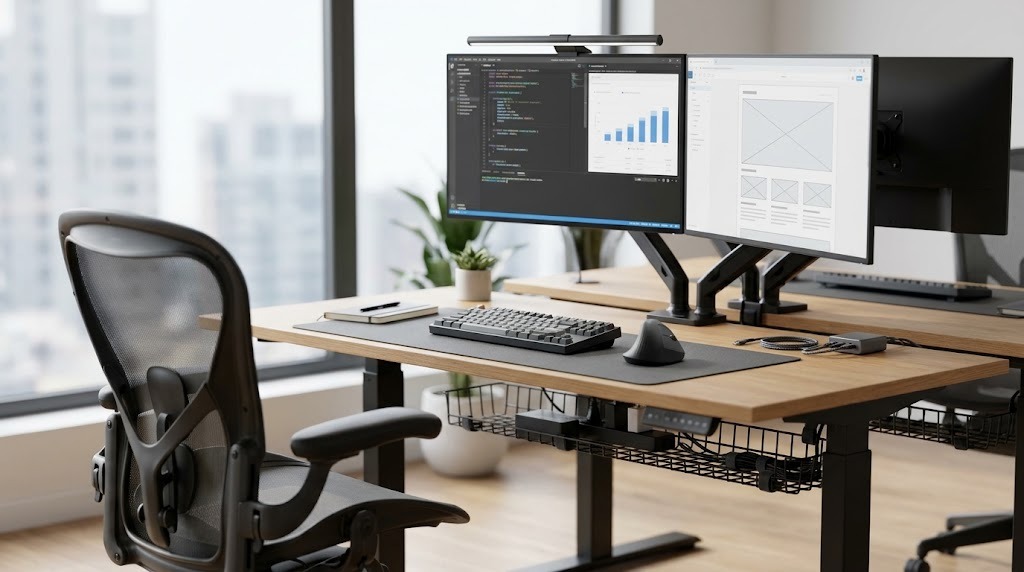
An office accessories checklist is a structured inventory used to audit, select, and integrate the functional tools that support productivity, ergonomics, and technology in a workspace. Unlike core office furniture such as desks or chairs, office accessories bridge the gap between human biomechanics and digital environments to optimize daily workflows.
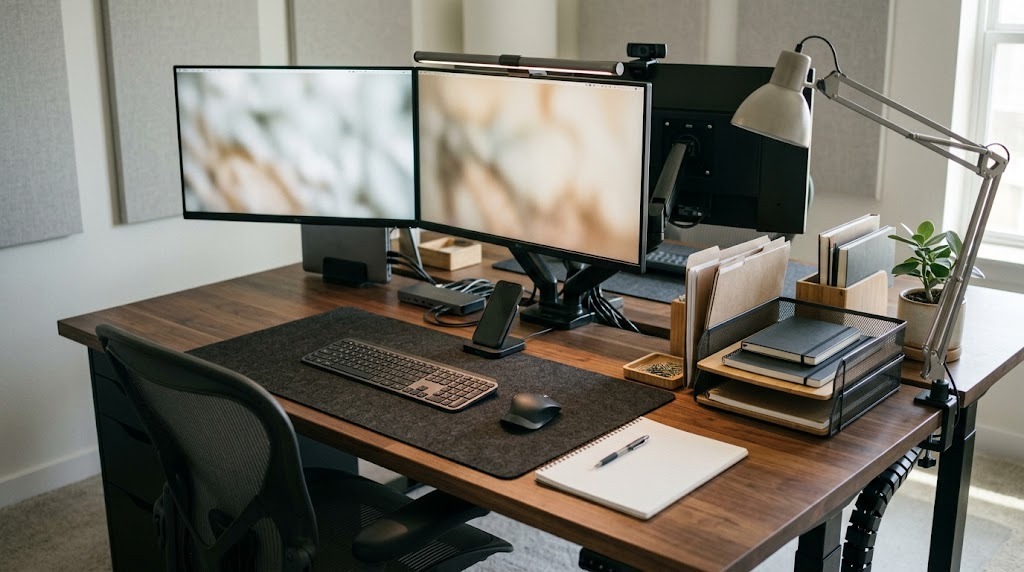
Key Facts / At a Glance
- Ergonomic standards dictate that the top third of a computer screen must align with eye level at a 20 to 30-inch viewing distance.
- Technology accessories follow a three-to-five-year replacement cycle driven by port evolution and firmware updates.
- Optimal desk mats measure 900x400mm to adequately cover the keyboard, mouse, and phone dock zones without edge overhang.
- Premium accessory implementations average $180 to $350 per item, utilizing standard protocols like Thunderbolt 4 and VESA mounting.
- Proper workspace setup requires a sequential approach: power foundation first, structural mounting second, tech integration third, and analog layering last.
What is the primary purpose of an office accessories checklist?
An office accessories checklist establishes a strategic procurement baseline to prevent reactive, piecemeal purchasing. Workspace environments degrade when users buy incompatible organizers, daisy-chain underpowered USB hubs, or mount heavy hardware on inadequate desk surfaces. A formalized checklist ensures compatibility across power budgets, ergonomic requirements, and physical desk dimensions.
Applying a checklist methodology shifts workspace design from aesthetic decoration to operational engineering. By categorizing tools by function—ergonomics, power, organization, and lighting—professionals can diagnose specific points of friction in their workday and deploy targeted hardware solutions that yield measurable stamina and focus improvements.
The Core Office Accessories Categories
Office accessories divide into five distinct functional categories. A complete setup pulls specialized items from each group based on the user’s specific workflow demands.
1. Ergonomic Support Accessories
Ergonomic support accessories engineer the workstation to prevent repetitive strain injuries (RSIs) and chronic postural fatigue during high-volume computer use.
- Monitor Arms: Mechanical or gas-spring articulation arms that clamp to the desk surface. They utilize standard VESA 75mm or 100mm brackets to hold single or dual screens, allowing precise height, depth, and angle calibration.
- Keyboard Trays: Under-desk articulating platforms that adjust for height and negative tilt. These ensure wrists remain in a neutral, unbent position.
- Wrist Rests and Mouse Pads: Dense memory foam or gel supports placed at the base of peripherals to prevent hard-surface pressure points on the carpal tunnel.
- Footrests: Angled, non-slip floor platforms. These maintain a 90-degree knee angle when an ergonomic chair must be raised too high for the user’s feet to rest flat on the floor.
- Document Holders: In-line sloped platforms placed exactly between the keyboard and monitor. These keep reference papers at eye level, eliminating lateral neck twisting.
2. Tech and Power Integration Tools
Peripherals and hubs in this category maintain device connectivity, continuous power delivery, and high-fidelity communication.
- Docking Stations: Powered multi-port hubs utilizing Thunderbolt 4, USB4, or USB-C protocols. A single cable connects a host laptop to multiple 4K external monitors, gigabit ethernet, and local storage arrays.
- Surge Protectors: Heavy-duty power blocks with minimum ratings of 2,000 Joules. Enterprise-grade strips feature integrated USB-C PD (Power Delivery) ports and mount securely beneath the desktop.
- Wireless Charging Pads: Qi-enabled inductive charging stations. These integrate directly into desk mats or stand alone to maintain smartphone and wireless earbud battery levels.
- Webcams and Ring Lights: External 1080p or 4K camera units paired with adjustable color-temperature LED lighting to ensure professional visual fidelity during video conferencing.
3. Desk Organization and Cable Management
Organization tools clear visual clutter, maximize usable surface space, and conceal hazardous wire tangles.
- Cable Management Systems: Under-desk J-channels, magnetic cable blocks, neoprene sleeves, and vertebrae tracks that group wires into single, hidden umbilical cords.
- Desktop Organizers: Tiered trays or modular bins constructed from mesh steel, acrylic, or bamboo. These sort immediate, pending, and archived physical paperwork.
- Drawer Dividers: Low-profile trays that compartmentalize pens, paperclips, and loose tech accessories inside desk drawers.
- Monitor Stands with Storage: Fixed-height risers for displays that feature built-in slots or slide-under space for keyboards, serving as a budget alternative to mechanical monitor arms.
4. Lighting and Ambient Control Solutions
Ambient solutions optimize visual clarity, mitigate eye strain, and regulate the user’s immediate micro-climate.
- Monitor Desk Lamps (Screenbars): Asymmetric light bars that clamp directly to the top bezel of a monitor. They cast light downward onto the desk surface without causing screen glare or washing out display contrast.
- Articulating Desk Lamps: Swing-arm task lights featuring dimmable LED bulbs. High-quality models offer adjustable color temperatures ranging from 2700K (warm) to 6500K (cool daylight).
- Thermal Regulators: Compact, low-wattage desk fans or personal space heaters. These control the immediate physical environment without requiring building-wide HVAC adjustments.
5. Analog Productivity and Acoustic Tools
Tactile tools facilitate rapid task tracking, surface protection, and auditory focus.
- Desk Mats and Blotters: Large linoleum, felt, or leather pads that protect the primary desk surface, provide a consistent mouse tracking area, and define the active working zone.
- Whiteboards and Glass Boards: Magnetic, dry-erase surfaces for collaborative diagramming and agile workflow tracking.
- Acoustic Panels: Clamp-on PET felt privacy screens that dampen high-frequency room reverberations and block visual distractions in open-plan spaces.
- Premium Stationery: High-gsm dot-grid notebooks and smooth-flow writing instruments utilized for tactile time-blocking or bullet journaling.
Category Comparison: Which accessory group delivers the highest ROI?
Investing in office accessories requires prioritizing categories based on the user’s primary workflow friction.
| Category | Primary Focus | Ideal User Profile | Key Advantage | Maintenance Burden |
| Ergonomic Support | Physical health, posture | High-volume typing, 8+ hour users | Eliminates chronic strain; boosts physical stamina | Low; requires initial precise calibration |
| Tech Integration | Connectivity, hardware uptime | Remote workers, multi-device users | Enables seamless single-cable hot-desking | Medium; requires firmware updates and dust clearing |
| Desk Organization | Visual clarity, decluttering | Paper-heavy workflows, shared desks | Minimizes cognitive distraction | High; complex bins easily trap dust and debris |
| Lighting & Ambient | Eye comfort, micro-climate | Night workers, detail-oriented tasks | Reduces ocular fatigue; sharpens focus | Low; bulb/LED failure is rare over 5 years |
| Analog & Acoustics | Tactile tracking, noise control | Brainstormers, open-office workers | Provides screen-free cognitive offloading | Medium; mats require periodic deep cleaning |
How much do office accessories cost and how long do they last?
Accessory costs correlate directly with build materials and technological protocols. Standard lifespans vary by category: analog organization tools built from steel or bamboo easily exceed 10 years, ergonomic hardware lasts 5 to 10 years before gas cylinders degrade, and tech/lighting cycles out every 3 to 5 years due to port evolution.
The financial estimates break down into three distinct implementation tiers:
- Budget/Essentials Tier ($15 – $40 per item): Includes mesh letter trays, basic 800-Joule surge strips, and foam wrist rests. Implementation takes 5 to 15 minutes of unboxing and placing.
- Mid-Range/Standard Tier ($50 – $150 per item): Includes asymmetric LED screenbars, basic dual monitor arms, and merino wool felt desk mats. Implementation requires 20 to 45 minutes of clamping and routing.
- Premium/Enterprise Tier ($180 – $350+ per item): Includes 40Gbps Thunderbolt 4 docks, articulating negative-tilt keyboard trays, and acoustic desk screens. Implementation demands 30 to 60 minutes, driver installations, and under-desk drilling.
Step-by-Step Office Accessory Implementation Process
Setting up an efficient office accessory ecosystem demands a specific sequence. Installing items out of order guarantees conflicting placements, inaccessible power ports, and cable tangles.
Before You Start:
Verify your desk’s construction material. Hollow-core desks (common in budget furniture) will crush under the localized pressure of heavy C-clamp monitor arms. Ensure you have a minimum desk thickness of 0.6 inches, a power drill, zip-ties, and 60 minutes of uninterrupted time.
- Establish the Foundation and Power: Secure the heavy-duty surge protector to the underside of the desk using screws or heavy-duty mounting tape. Run the main power trunk line down the desk leg closest to the wall outlet. Lay the primary desk mat down to anchor the center of the workspace.
- Mount the Structural Hardware: Attach the C-clamps for the monitor arms and bolt the rails for the under-desk keyboard tray. Do not tighten the joints completely until you sit in the chair and verify the ergonomic geometry.
- Integrate Core Infrastructure Tech: Position the Thunderbolt docking station near the base of the monitor arm. Run the display cables down the articulating arms, secure them inside the built-in plastic tracks, and plug them directly into the dock.
- Route Peripheral Cabling: Connect the keyboard, mouse, webcam, and lighting units. Route all loose cords backward into J-channels mounted under the rear edge of the desk. Utilize hook-and-loop straps (never permanent zip-ties for data cables) to bundle excess slack.
- Layer Analog and Micro-Organization: Place document holders, small desktop trays, and pen cups exclusively on your non-dominant side. This preserves prime desktop real estate on your dominant side for active mouse movements and note-taking.
Common Accessory Setup Mistakes and Troubleshooting
Building a workspace without a clear office accessories checklist often leads to functional failures and wasted budgets.
- The “Trinket Trap”: Purchasing highly specialized micro-organizers (multi-tiered phone docks, individual paperclip bins) before observing actual daily usage. This converts physical mess into structured clutter. Always start with broad storage and narrow down only if required.
- Ignoring Weight Tolerances: Mounting premium 34-inch ultrawide monitors onto cheap, spring-balanced arms rated for standard 24-inch screens. The excess weight overwhelms the tension springs, causing the display to sag or tip forward dangerously.
- Mismatched Power Budgets: Chaining multiple non-powered USB hubs directly off a single laptop port. This starves external webcams, microphones, or bus-powered hard drives of necessary voltage, resulting in frequent disconnects and driver failures.
- Ignoring Surface Materials: Using cheap PVC leatherette desk mats in poorly ventilated rooms. These materials suffer from VOC off-gassing and trap heat under laptops. Opt for linoleum or natural wool felt.
Troubleshooting Quick-Fixes:
If your screen shakes while typing, the monitor arm is likely clamped to a thin desktop or fully extended to its maximum leverage point. Move the clamp base directly over a desk leg to improve structural rigidity. If you experience wrist numbness, lower the keyboard tray or raise your seat until your elbows rest at exactly a 90-degree angle, allowing wrists to hover cleanly over the keys.
Expert Recommendations for Specific User Profiles
No two professions require the exact same office accessories checklist. Tailor the setup to the primary friction points of the daily workflow.
The Remote Corporate Employee (Hybrid/WFH)
This user prioritizes seamless laptop transit and clear communication. The checklist must include a single-cable Thunderbolt 4 Docking Station for rapid detachment, a 1080p webcam equipped with a hardware privacy shutter, and an asymmetric LED monitor screenbar to balance harsh residential ambient lighting.
The Heavy Data Entry / Analyst User
This user requires sustained physical endurance and maximum viewable digital real estate. Critical additions include an articulating keyboard tray with negative tilt adjustment to protect the carpal tunnel during 8-hour sessions, a dual gas-spring monitor arm to pivot spreadsheets into portrait orientation, and an in-line document wedge to eliminate neck twisting when referencing paper statements.
The Minimalist Creative / Designer
This user focuses on visual clarity, tactile textures, and distraction-free environments. The setup relies on a premium merino wool felt desk mat for mouse precision, an under-desk cable management spine to completely hide all peripheral wires, and a desktop magnetic glass notepad to replace visually messy paper sticky notes.
Frequently Asked Questions
How do I hide cables on a glass desk?
Managing cables on a transparent glass desk requires routing wires along the opaque metal framing using adhesive cable clips or magnetic ties. Surge protectors and docking stations must be mounted to the desk legs or hidden in a dedicated floor-level cable management box, as under-desk mounting is visually exposed.
Are under-desk keyboard trays obsolete?
Under-desk keyboard trays are not obsolete; they remain ergonomically necessary if the user’s desk cannot lower to the proper seated elbow height (typically 24 to 28 inches). For standard 29-inch fixed-height desks, a tray provides the required negative tilt and height drop to prevent carpal tunnel compression.
What is the ideal lumen count for a desk lamp?
A standard desk lamp should output between 400 and 800 lumens for focused task lighting. For intensive detail work like drafting or hardware repair, 1,000 lumens is required. Ensure the lamp offers dimming capabilities and a high Color Rendering Index (CRI >90) to prevent eye strain and color distortion.
Does a monitor screenbar damage the screen?
A properly designed monitor screenbar will not damage a display. Premium models utilize a counter-weighted pivot bracket that rests gently on the top bezel without applying clamping pressure to the LCD panel. However, using cheap spring-loaded clamps on ultra-thin OLED bezels can cause dead pixels or panel warping.
How often should I replace surge protectors?
Surge protectors should be replaced every three to five years, or immediately following a major electrical grid event. The internal metal oxide varistors (MOVs) that absorb voltage spikes degrade silently with each small surge. Once the Joule rating is depleted, the unit functions only as a standard power strip, offering zero hardware protection.
Finalizing your office accessories checklist requires honest assessment of your physical space and daily friction points. Audit your desk dimensions, identify your primary discomforts, and invest selectively in hardware that solves measurable problems rather than simply filling empty desk space.