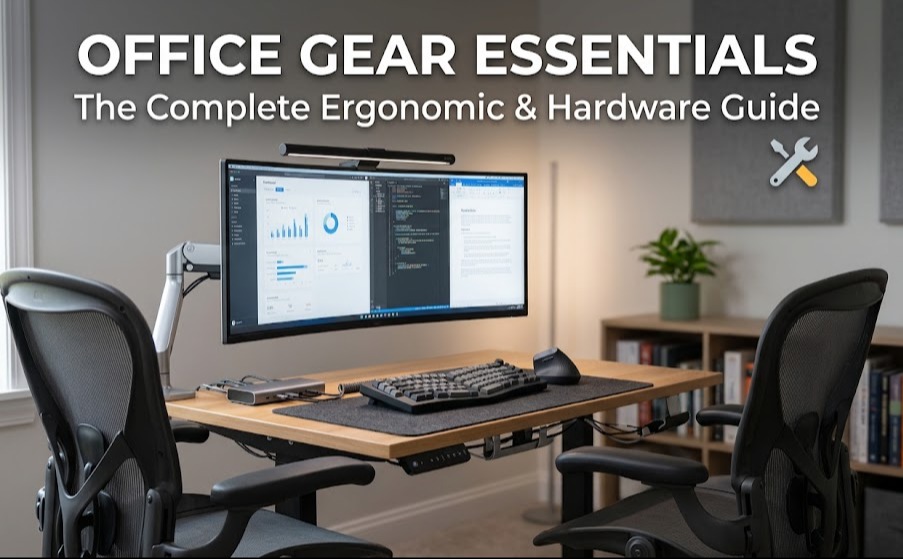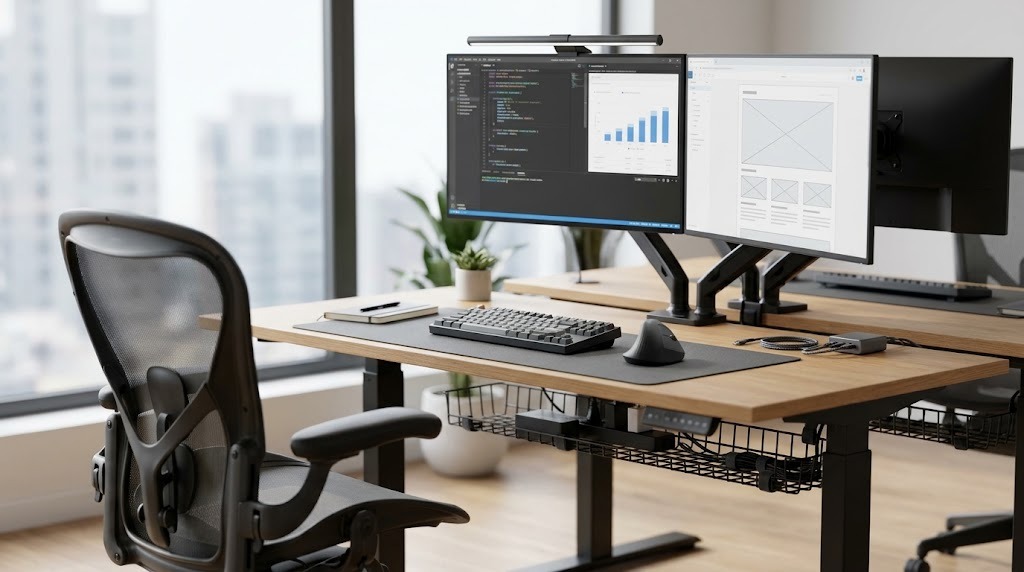
Home office essentials are the dedicated hardware, software, and ergonomic furniture components required to build a productive remote workspace within a primary residence. A complete setup integrates structural alignment, power infrastructure, and environmental control to minimize musculoskeletal strain and support professional workflows seamlessly.
Key Facts at a Glance
- Standard Desk Height: The traditional 29-inch fixed desk only fits users who are exactly 6 feet tall; shorter users require adjustable solutions or specific footrests.
- Optimal Screen Distance: Monitors must sit 50 to 70 centimeters (20 to 30 inches) from your face to prevent eye strain.
- Minimum Connectivity: Reliable video conferencing requires a stable connection of at least 50 Mbps download and 10 Mbps upload.
- Budget Baselines: A viable entry-level ergonomic setup begins at $300, while premium professional deployments scale past $4,000.
- The Monitor Delta: Transitioning from sitting to standing requires raising your monitor an additional 3.9 centimeters relative to the desk surface to prevent neck compression.
What Are the Core Home Office Essentials?
A productive home office functions as an integrated ecosystem. Rather than buying random pieces of furniture, approach your workspace as three interconnected categories: ergonomic foundations, computing infrastructure, and communication gear.
Ergonomic Furniture & Baseline Infrastructure
The physical foundation determines how long you can work without pain.
- Desks: Options include Fixed-Height Desks (standard 29-inch height), Manual Crank Standing Desks, and Dual-Motor Electric Sit-Stand Desks. The desktop depth must be at least 30 inches to ensure proper focal distance from the monitor. For urban micro-apartments, hideaway or wall-mounted desks save floor space and reduce cognitive load by hiding professional tools during domestic hours.
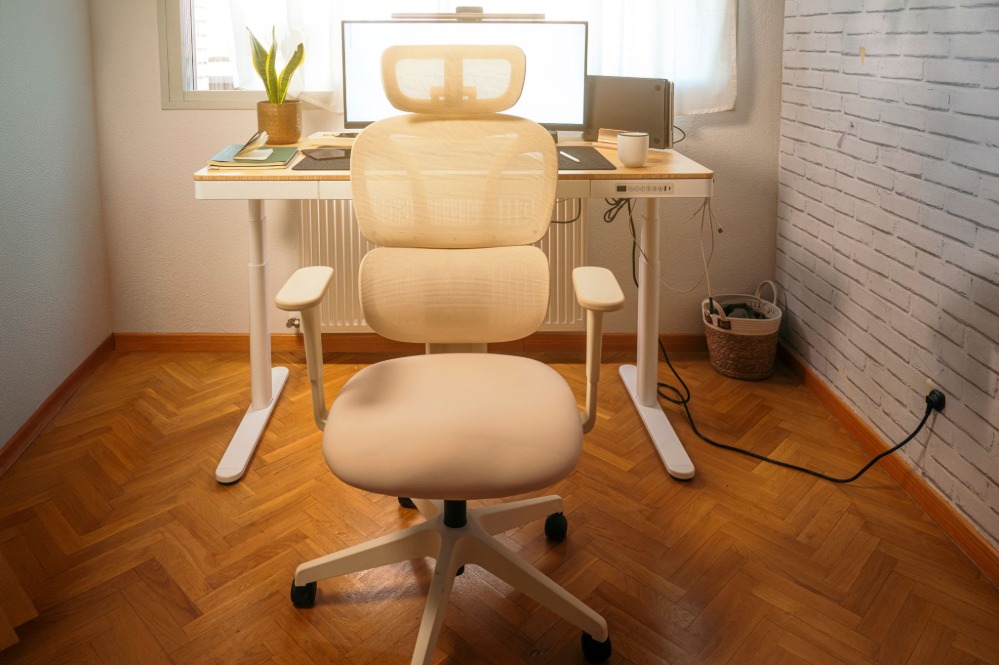
- Seating: Options range from Basic Task Chairs to Ergonomic Office Chairs with synchronous tilt mechanics, 4D adjustable armrests, and Premium Mesh Chairs featuring active lumbar tracking.
Computing Hardware & Visual Peripherals
Your computing tier dictates workflow efficiency and multitasking capabilities.
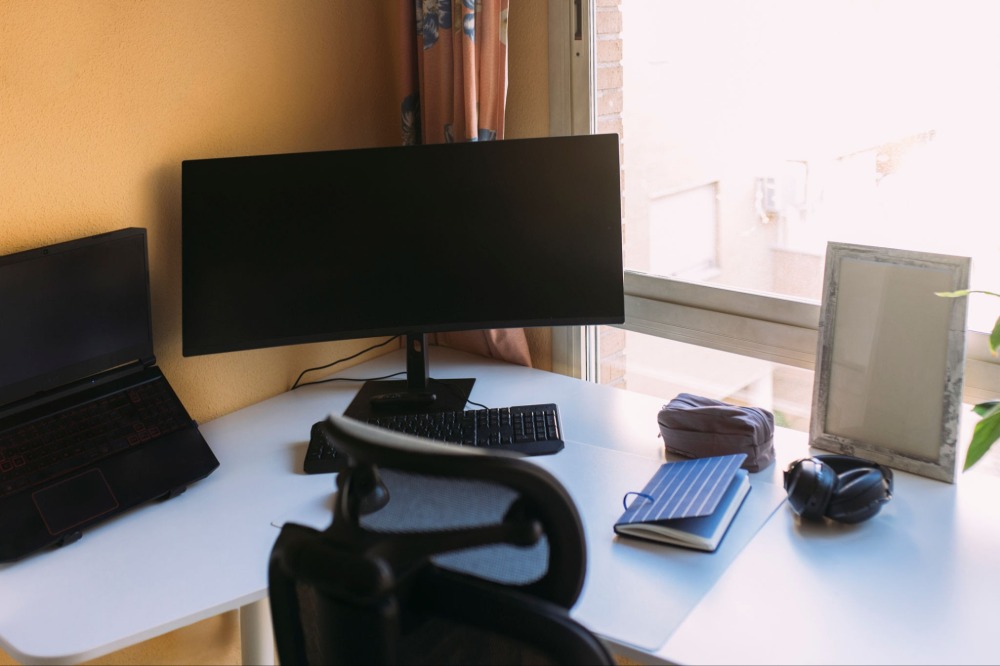
- Monitors: Main categories include 27-inch 4K IPS Displays (ideal for crisp text clarity), 34-inch Ultra-wide Monitors (best for seamless multitasking without a dual-screen bezel), and Dual 24-inch 1080p setups. Look strictly for panels featuring flicker-free technology and low blue light hardware certifications.
- Input Devices: Options include Standard Membrane Keyboards, Mechanical Keyboards (using tactile or linear switches), Ergonomic Split Keyboards, and Ergonomic Vertical Mice engineered to prevent wrist pronation.
Communication and Audio Gear
Audio and video clarity directly impact professional perception during remote meetings.
- Webcams: Varieties include Integrated Lenses, dedicated 1080p 60fps External Webcams, and 4K DSLR-mirrorless setups utilizing capture cards for maximum fidelity.
- Audio Gear: The standard includes USB Condenser Microphones with cardioid pickup patterns (rejecting background noise), Wireless Noise-Canceling Headphones, and Professional Open-Back Monitors paired with dedicated audio interfaces.
How to Calculate Your Ergonomic Setup Parameters
Most home offices fail ergonomically because users start with the desk they already own rather than calculating their physiological measurements first. Posture correction through conscious willpower fatigues within minutes; an ergonomic setup removes the need for effort by making the correct position the natural one.
To achieve neutral posture, apply the 2026 ergonomic height constants:
- The 0.41 Sitting Constant: Multiply your total height in centimeters by 0.41 to find your ideal sitting desk height. This aligns the desk surface with your natural elbow height, ensuring forearms remain parallel to the floor.
- The 0.6 Standing Constant: When standing, your spinal column elongates. Multiply your height by 0.6 to find the most stable platform height for typing.
- The 3.9cm Monitor Delta: When moving from sitting to standing, the distance between your keyboard and the top of your monitor must increase by approximately 3.9 centimeters to account for shifts in eye-level perspective.
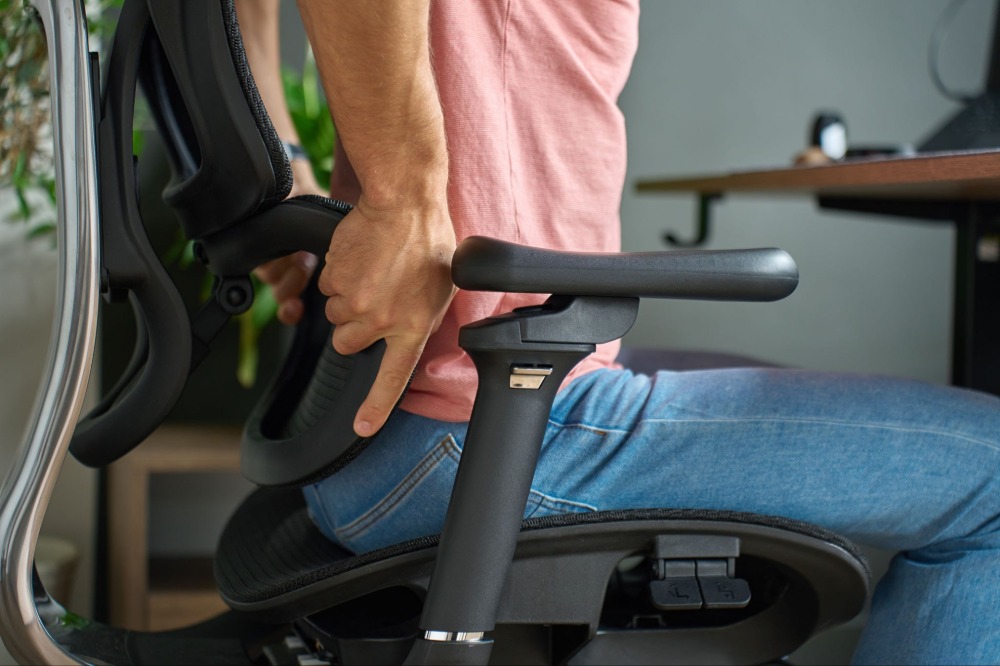
Expert Insight: Relying on dining chairs or aesthetics-first seating accelerates lower back strain because they lack pelvis stabilization. Always adjust your chair height before modifying your desk height.
How to Set Up Your Workspace (Phase-by-Phase)
Deploying a home office requires strict sequential ordering. Moving hardware before establishing power and data infrastructure inevitably results in torn cables or unstable Wi-Fi.
Phase 1: Spatial Planning & Assessment:
Requires measuring tape and outlet mapping.
Select a dedicated zone with a physical door and natural light. Measure the floor dimensions to ensure adequate clearance for chair movement. Audit the room for wall outlets and internet ports to plan your core cable routing strategy.
Phase 2: Infrastructure Deployment:
Establish power and data before furniture.
Run a speed test to verify network bandwidth (minimum 50/10 Mbps). Lay down surge-protected power strips near the planned desk location—never use cheap extension cords. Position the desk perpendicular to windows to prevent direct screen glare or silhouette effects on camera.
Phase 3: Furniture & Hardware Outfitting:
Assemble from the floor up.
Assemble the desk and chair, setting the chair’s height first to establish your baseline. Mount computing hardware, placing monitors so the top bezel aligns exactly with your straight-ahead gaze. Connect all input devices, webcams, and audio peripherals.
Phase 4: Ergonomic Fine-Tuning & Cable Management:
Lock in the operational ecosystem.
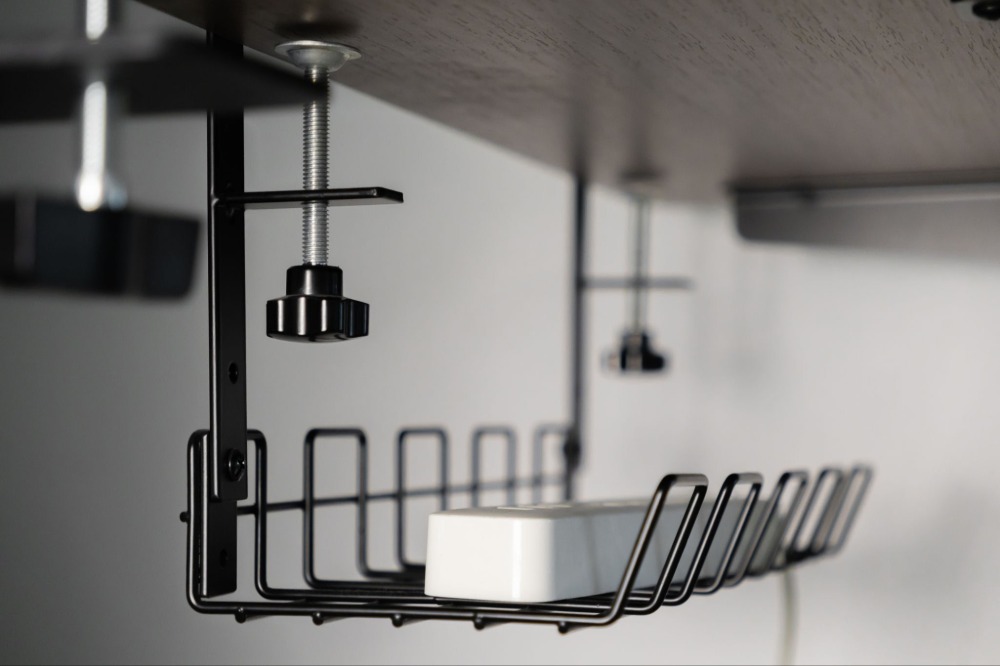
Adjust chair armrests to match your elbow height. Route cables cleanly using under-desk trays or zip ties, ensuring you leave sufficient cable slack for standing desks to raise fully without ripping wires from ports. Execute a test video call to verify all systems.
How Much Does a Home Office Setup Cost?
Total investment scales based on mechanical adjustability, display resolution, and material durability. Standard shipping and delivery windows average 5 to 14 business days.
| Setup Tier | Typical Price Range | Key Components Included | Expected Assembly Time |
| Entry-Level Budget | $300 – $600 | Fixed desk, basic ergonomic chair, single 1080p monitor, standard wired peripherals. | 2 to 3 hours |
| Mid-Tier Professional | $1,200 – $2,500 | Electric standing desk, highly adjustable chair, 4K or ultra-wide monitor, dedicated webcam, wireless devices. | 4 to 6 hours |
| Premium Executive | $4,000 – $7,000+ | Solid wood dual-motor desk, high-end mesh chair, dual 4K/OLED displays, studio mic, DSLR camera setup. | 6 to 8 hours |
Which Equipment Should You Choose?
Selecting the right essentials depends entirely on your daily tasks and local climate. Do not purchase heavy foam chairs in hot, un-air-conditioned rooms, and avoid dual monitors if you do not actively cross-reference data.
| Category Option | Pros | Cons | Verdict |
| Electric Standing Desk | Improves circulation; custom presets. | Heavy assembly; requires managed cable slack. | Best for full-time remote workers. |
| Fixed-Height Desk | Structural stability; massive variety of finishes. | Restricts movement; requires monitor risers. | Best for part-time hybrid workers. |
| Ergonomic Mesh Chair | High breathability; adaptive contouring. | Mesh sags if cheap; cold in winter. | Best for warm climates and 8-hour shifts. |
| Padded Foam Chair | High initial plush comfort; cozy feel. | Retains body heat; foam degrades over time. | Best for temperature-controlled rooms. |
| Ultra-wide Monitor | Seamless view; fewer cables; clean aesthetic. | Limited window snapping natively. | Best for video editors and creatives. |
| Dual Monitor Setup | Full-screen app separation; great for data. | Center bezel splits vision; desk clutter. | Best for data analysts and programmers. |
Expert Recommendations by User Persona
- The Data Analyst / Programmer: Prioritize screen real estate and input comfort. Invest in an ultra-wide or dual-monitor configuration paired with a high-end mechanical keyboard to ease repetitive strain.
- The Corporate Executive / Sales Representative: Focus heavily on communication quality. Allocate budget toward a high-quality 4K external webcam, a cardioid USB microphone, and dedicated acoustic paneling to kill room echo.
- The Creative Professional: Focus on color accuracy and processing bandwidth. Select a factory color-calibrated IPS monitor with 100% DCI-P3 coverage and a high-speed Thunderbolt 4 docking station.
- The Urban Apartment Dweller: Focus on space optimization and boundary setting. Invest in a heavy-duty wall-mounted floating desk (0 sq ft floor footprint) or a fold-out cabinet desk to visually remove work from your living space at 5 PM.
Common Home Office Setup Mistakes
- Neglecting Lumbar Support: Using dining chairs accelerates lower back strain because they force the pelvis to tilt backward.
- Poor Lighting Orientation: Placing your desk directly in front of a bright window creates severe eye strain and camera silhouette effects, while sitting with a window directly behind you creates screen glare.
- Buying Inadequate Power Strips: Using unprotected extension cords instead of verified surge protectors risks destroying expensive computing hardware during grid voltage spikes.
- Ignoring Cable Slack: Forgetting to leave excess cable length on sit-stand desk setups will eventually rip power cords out of computer ports when raising the desk to a standing height.
Troubleshooting Workspace Problems
- Chronic Wrist and Neck Pain: Adjust your chair armrests so your shoulders remain entirely relaxed. Elevate your monitor until the top third of the panel aligns with your straight-ahead gaze. Check your elbow angle—it must be 90 to 100 degrees.
- Grainy, Dark Video on Conference Calls: Move your desk to face the natural light source, or install a key light (or monitor light bar) directly behind your webcam to evenly illuminate your face.
- Unstable Wi-Fi Dropouts: Transition immediately to a hardwired Cat6 Ethernet cable running straight back to your router. If drilling for wires is impossible, upgrade to a Wi-Fi Mesh system and locate one node directly inside your workspace.
Frequently Asked Questions
What is a hideaway desk and who is it for?
A hideaway desk is a space-saving workstation that folds, collapses, or masquerades as alternative furniture. They are essential for urban studio apartments because they allow users to hide visual clutter, reducing off-hours cognitive load.
How far should my monitor be from my eyes?
The scientifically recommended viewing distance is 50 to 70 centimeters (roughly 20 to 30 inches) from your eyes to the screen, which equates to the length of your fully extended arm.
Does my chair seat depth actually matter?
Yes. There must be a gap of 2 to 4 fingers between the front edge of the seat pan and the back of your knees. If the seat is too deep, it presses into your calves and cuts off blood circulation to your lower legs.
Should my standing desk mat be hard or soft?
Standing desks require firm, anti-slip neoprene-backed mats. A surface that is too soft causes micro-instability in your ankles, leading to fatigue, while anti-slip backing ensures your core remains stabilized.