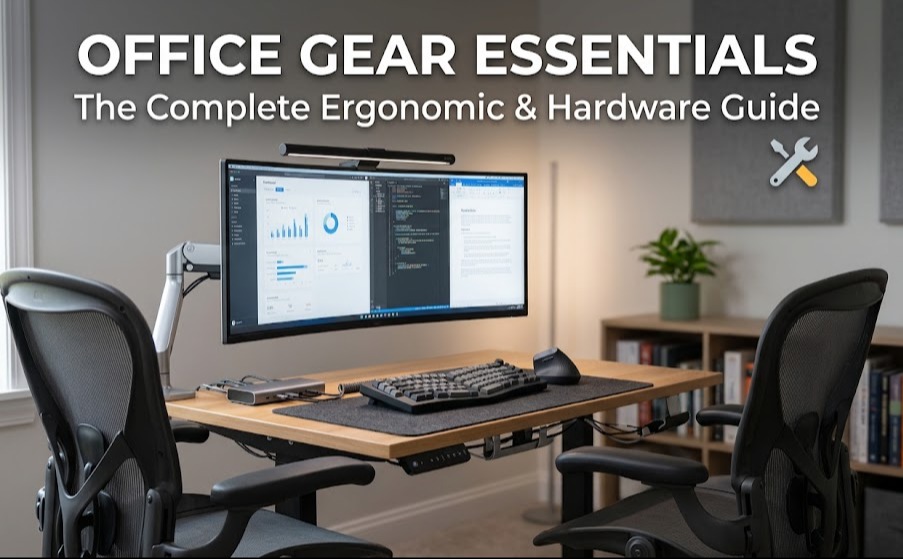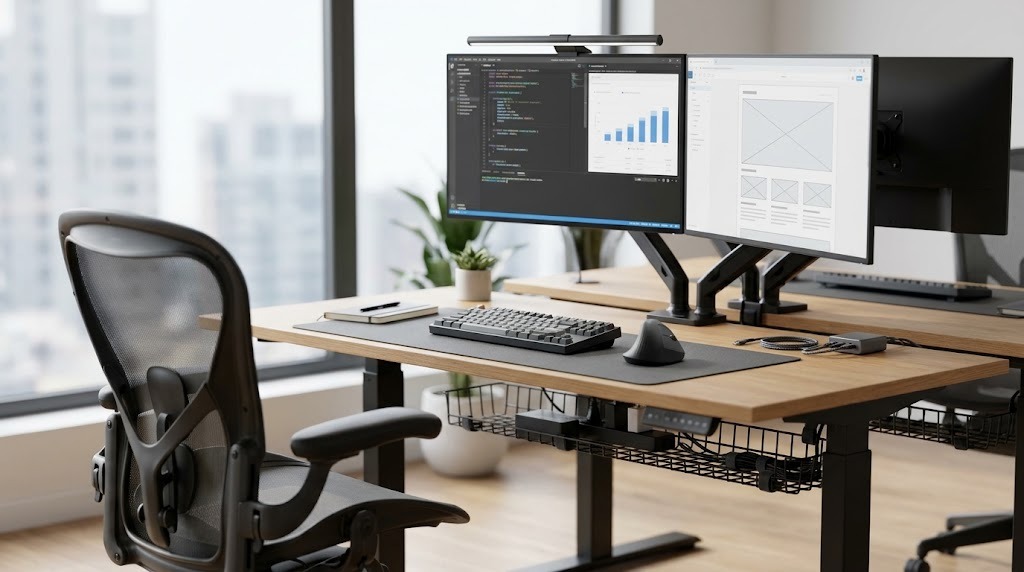
Office accessories are functional and ergonomic tools used to enhance productivity, organize workspaces, and improve comfort in a professional or home office environment. By optimizing space utilization, reducing physical strain through precise ergonomic alignment, and streamlining daily workflows, these physical additions transform a basic desk into a highly efficient environment.
Key Facts / At a Glance
- Categories: Divided into ergonomic supports, desktop organization, environmental control, and connectivity hubs.
- Price Range: Spans from $10 for entry-level plastic organizers to $500+ for enterprise-grade ergonomic hardware.
- Setup Timeframes: Simple desk pads deploy in 5 minutes; articulating dual-monitor arms require up to 45 minutes of installation.
- Ergonomic Baselines: Keyboard trays must sit 2 to 3 inches above the user’s knees, while monitor tops must align exactly with eye level.
- Core Philosophy: Effective accessories resolve specific friction points rather than adding aesthetic clutter.
Core Categories of Office Equipment
Modern workspaces rely on distinct categories of physical tools to manage technology, prevent bodily strain, and maintain focus.
Ergonomic Supports
Ergonomic accessories are structural brackets, platforms, and cushions designed to force the human body into a neutral, low-strain posture during prolonged computer use.
- Monitor Arms: Mechanical, gas-spring, or friction-tilt brackets that clamp to the desk surface. They allow fluid height, depth, and angle adjustments to eliminate neck flexion. Most utilize standard 75mm or 100mm VESA mounting plates.
- Keyboard Trays: Under-desk sliding platforms equipped with negative tilt capabilities. They keep the user’s wrists in a neutral or slightly downward angle, heavily mitigating the risk of repetitive strain injuries (RSI) like carpal tunnel syndrome.
- Laptop Stands: Raised aluminum or acrylic platforms that lift a laptop screen to eye level. They correct cervical spine alignment but strictly require an external input device.
- Footrests: Angled, textured wedges placed beneath the desk. They support the feet, correct knee angles to 90 degrees, and relieve lumbar pressure for shorter users.
- Anti-Fatigue Mats: High-density polyurethane foam mats used with standing desks. They encourage micro-movements in the calves, reducing venous pooling in the lower extremities.
Desktop Organization Tools
Desktop organization accessories manage physical objects, paper, and cables to maximize available surface area and reduce visual distractions.
- Desk Pads: Large protective mats made of top-grain leather, PET felt, or linoleum. They act as expansive mousepads, dampen keyboard acoustics, and define the primary work zone.
- Cable Management Trays: Wire baskets, PVC raceways, or aluminum channels mounted beneath the desk surface. They house heavy power strips, route display cables, and prevent dangerous floor-level tangles.
- Drawer Organizers: Modular plastic, bamboo, or metal dividers. They segment small, easily lost supplies like paperclips, digital styluses, and storage drives.
- Document Trays: Stackable horizontal or vertical bins. They facilitate analog sorting systems for incoming, active, and completed physical paperwork.
Environmental Control Accessories
Environmental accessories manipulate lighting, temperature, and sound within the immediate workstation boundary without altering the central room systems.
- Desk Lamps: Articulating task lights positioned to illuminate physical documents. Modern iterations feature adjustable color temperatures (2700K to 6500K), built-in wireless charging bases, and asymmetrical light throw to prevent screen glare.
- Compact Climate Control: Low-wattage space heaters and USB-powered desk fans tailored for localized temperature regulation. They prevent thermal discomfort without triggering office-wide HVAC conflicts.
- Acoustic Panels: Desktop-mounted PET felt screens that absorb high-frequency sound waves. They are critical for privacy and echo reduction in open-plan or minimally furnished home offices.
How Much Do Office Accessories Cost?
Office accessories cost anywhere from $10 for entry-level organizational bins to well over $500 for enterprise-grade ergonomic hardware. The market is segmented into three distinct quality tiers based on materials, adjustability, and expected longevity.
| Quality Tier | Typical Price Range | Expected Lifespan | Common Materials | Best Use Case |
| Budget / Entry-Level | $10 – $40 | 1 – 3 Years | ABS Plastic, Light Mesh, Particle Board, Tape | Temporary setups; student dorms; basic cable clips. |
| Mid-Range / Professional | $45 – $150 | 5 – 8 Years | Aluminum, Steel, Heavy Wool Felt, Vegan Leather | Dedicated home offices; standard corporate deployment. |
| Premium / Enterprise | $150 – $500+ | 10+ Years / Lifetime | Aircraft-grade Aluminum, Top-grain Leather, Hardwood | Ergonomic medical necessity; luxury executive spaces. |
Investing in premium ergonomic supports often yields a lower cost-per-year ratio due to lifetime warranties on mechanical parts, whereas budget gas-spring monitor arms typically lose tension within 24 months.
Which Organizational Philosophy Is Best?
The best organizational philosophy depends entirely on whether your workflow relies on physical reference materials or purely digital systems. Workspaces typically follow one of two opposing methodologies.
Analog Organization (Physical Bins & Trays)
This traditional system relies on document trays, physical whiteboards, and high-visibility desktop storage.
- Pros: High visual visibility guarantees tasks are not forgotten; offers satisfying tactile feedback; requires zero digital context-switching.
- Cons: Consumes valuable physical desk real estate; rapidly generates visual clutter if sorting discipline lapses.
Minimalist / Digital-First (Desk Pads & Trays Only)
This modern approach hides all wiring and eliminates paper, leaving only a desk pad, inputs, and monitors visible.
- Pros: Maximizes open workspace; provides a clean aesthetic conducive to deep focus; drastically reduces cleaning and dusting time.
- Cons: Forces strict digital discipline; aggressively hides items, which commonly leads to “out of sight, out of mind” task forgetfulness.
What Are Common Setup Mistakes?
Users frequently purchase correct office accessories but deploy them incorrectly, causing mechanical failure or exacerbating physical pain. Addressing these deployment errors restores the intended functionality of the equipment.
- The Ergonomic Chain Link Error: Purchasing a laptop stand to cure neck pain, but continuing to type on the elevated laptop keyboard. This simply trades cervical strain for severe wrist and shoulder strain.
- The Fix: Always pair an elevated laptop stand with a detached, desk-level wireless keyboard and mouse.
- The Fix: Always pair an elevated laptop stand with a detached, desk-level wireless keyboard and mouse.
- Overloading Adhesive Cable Trays: Stuffing heavy power bricks and thick surge protectors into a plastic management tray secured only by double-sided mounting tape. The sheer weight paired with the heat of the power bricks causes the adhesive to fail, dropping electronics.
- The Fix: Use screw-mounted metal trays for heavy power setups. Reserve adhesive clips strictly for routing single, lightweight USB cables.
- The Fix: Use screw-mounted metal trays for heavy power setups. Reserve adhesive clips strictly for routing single, lightweight USB cables.
- Monitor Sag: Experiencing heavy screens tilting downward on a newly installed or budget monitor arm. Users often assume the arm is defective.
- The Fix: Locate the mechanical tension screw on the arm’s primary elbow joint. Turn it clockwise using a standard 5mm Allen wrench until the internal spring tension matches the weight of the screen.
Which Setup Fits Your Work Style?
Selecting office accessories requires matching the equipment’s core strength to the user’s daily friction points.
The Remote Work Professional
Remote professionals require physical longevity and strict ergonomics to handle continuous 8-hour shifts without the movement inherent in traditional office environments.
- Top Pick: A mechanical spring dual-monitor arm to perfectly align screens and reclaim the desk space normally lost to bulky factory monitor stands.
- Secondary Pick: A thick, high-quality wool felt desk pad to dampen keyboard acoustics during frequent video calls.
The Creative or Designer
Designers demand color accuracy, rapid access to physical tools, and expansive, uncluttered surfaces for sketching or drafting.
- Top Pick: A high-CRI (Color Rendering Index >95) LED desk lamp with an edge-clamp mount. This delivers true-to-life color illumination without consuming surface space.
- Secondary Pick: Modular, magnetic drawer organizers to separate specialized physical media (microns, markers) from digital styluses.
The Hot-Desking / Hybrid Worker
Hybrid workers who rotate between corporate desks and coffee shops must prioritize portability and rapid deployment over permanent heavy-duty ergonomics.
- Top Pick: An ultra-slim, folding aluminum laptop stand that collapses flat to slip into a standard laptop bag.
- Secondary Pick: A clamshell tech organizer pouch to manage charging bricks, external SSDs, and travel cables, preventing tangled transit.
Frequently Asked Questions
Are monitor arms compatible with any monitor?
Most modern monitors are compatible, but you must verify the display has a VESA mounting pattern (four screw holes in a square, usually 75x75mm or 100x100mm) on the back. Monitors without this pattern require a specialized third-party adapter bracket.
Do desk pads damage wood surfaces?
High-quality leather, linoleum, and PET felt desk pads will not damage wood. However, cheap synthetic rubber or PVC pads can react chemically with certain wood finishes (like polyurethane) over time, causing discoloration.
Is a keyboard tray necessary if I have a height-adjustable desk?
A keyboard tray is not strictly necessary if your desk can lower enough to achieve a 90-degree elbow angle with your feet flat on the floor. However, trays are essential if your desk remains too high even at its lowest setting, which forces shoulder elevation.
How do I manage cables on a glass desk?
Glass desks prevent the use of under-mount screws. You must rely on heavy-duty adhesive cable raceways routed along the metal frame, combined with braided cable sleeves that consolidate multiple cords into one visually clean tube leading to the floor.
What is the difference between an ergonomic mouse and a standard mouse?
Standard mice force the forearm into full pronation (palms flat downward), which crosses the radius and ulna bones. Ergonomic office accessories, specifically vertical mice, rotate the hand 45 to 90 degrees into a neutral “handshake” position, drastically reducing forearm tension.