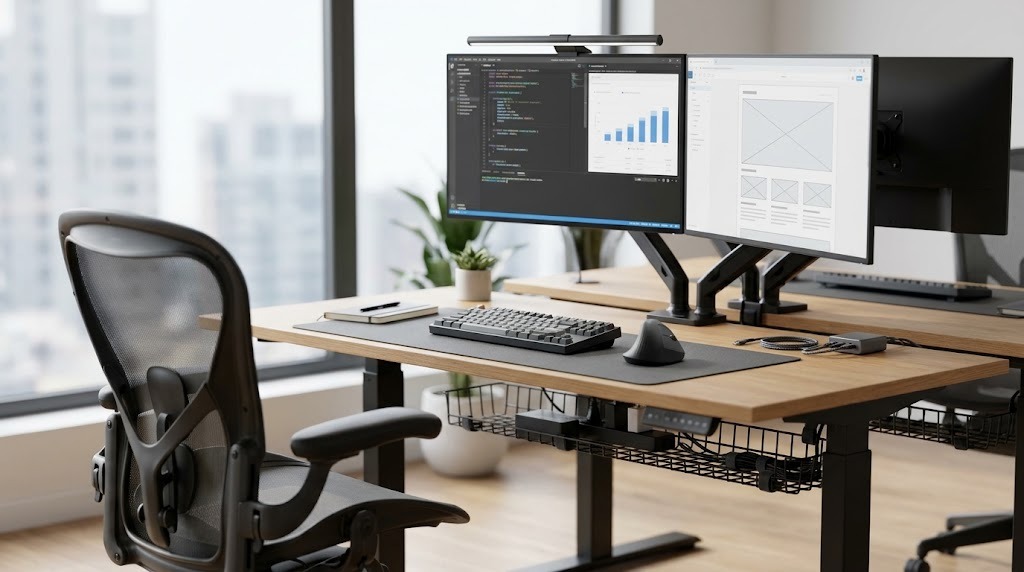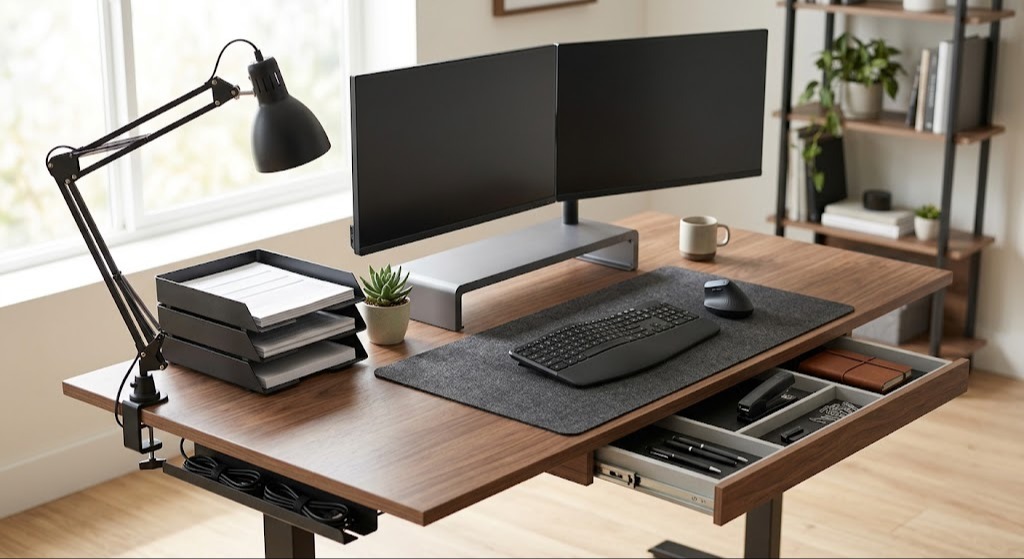
Office gear essentials are the foundational physical tools, hardware, displays, and ergonomic furniture required to operate a highly productive, safe, and comfortable desk workstation. Selecting high-grade office gear essentials minimizes long-term repetitive strain injuries (RSIs), reduces cognitive fatigue, and prevents operational downtime caused by hardware failure.
Key Facts: Office Workspace Standards
- Ergonomic Seating: A BIFMA-certified task chair with adjustable seat depth and 4D armrests reduces lower back compressive force by up to 40%.
- Active Posture Switching: Alternating between sitting and standing using the 20-8-2 rule (20 minutes sitting, 8 minutes standing, 2 minutes stretching) prevents static muscle fatigue and venous pooling.
- Display Alignment: Positioning the top third of an external monitor at eye level eliminates forward head posture (“text neck”), reducing neck load by up to 30 pounds.
- Peripheral Mechanics: Split mechanical keyboards and vertical mice align the radius and ulna bones, preventing carpal tunnel pressure and forearm pronation.
- Infrastructure Connectivity: A single-cable Thunderbolt 4 dock providing at least 85W Power Delivery (PD) consolidates power, display, and data transferring while eliminating cable clutter.
What Are Office Gear Essentials?
Office gear essentials are the functional physical components—spanning seating, desks, computing peripherals, displays, power delivery, and acoustic treatments—that constitute an individual’s daily workstation. Rather than treating gear as isolated purchases, modern workspace architecture treats these items as an interconnected operational environment.
The core objective of equipping a workspace with proper office gear essentials is balancing physical health with cognitive throughput. Substandard equipment forces the human body to compensate for structural flaws, resulting in micro-traumas to musculoskeletal tissues, elevated mental fatigue, and reduced daily task efficiency. High-grade gear transfers physical stress away from the operator and onto engineered mechanical supports.
How Does an Ergonomic Workstation Ecosystem Function?
An ergonomic workstation ecosystem functions by aligning physical contact points, display geometry, and peripheral inputs with human anatomical neutral positions. When every piece of equipment is tuned to the user’s specific anthropometric measurements, body strain drops and task velocity increases.
What Is the Ergonomic Triangle?
The Ergonomic Triangle is the biomechanical alignment relationship between the user’s task chair, desk surface, and display monitors.
To achieve a neutral posture:
- The Chair: Supports the spinal column’s natural lumbar curve while keeping feet flat on the floor and knees bent at a 90-to-100-degree angle.
- The Desk Surface: Holds input tools at a height where shoulders remain relaxed and forearms rest parallel to the floor without resting on sharp desk edges.
- The Monitor: Sits directly in front of the user at arm’s length, with the upper portion of the display viewing area sitting at exact horizontal eye level.
How Do Input Peripherals Influence Muscle Fatigue?
Input peripherals influence muscle fatigue by controlling wrist extension, deviation, and forearm pronation during daily typing and navigation. Standard flat keyboards force palms parallel to the desk, causing internal shoulder rotation and cross-ulnar muscle twisting. Split contoured keyboards allow hands to rest at a natural angle, while vertical mice keep the hand in an unconstrained “handshake” orientation, lowering carpal tunnel fluid pressure.
How Does Display Real Estate Impact Cognitive Load?
Display real estate impacts cognitive load by minimizing the short-term memory overhead required to switch between active application windows. Research indicates that upgrading from a single laptop screen to a dual-monitor setup or a 34-inch ultrawide display increases multi-tasking speed by eliminating window management friction. Maintaining context across visible applications preserves focus and lowers cognitive stress.
What Are the Core Categories of Office Gear Essentials?
Office gear essentials divide into five distinct hardware categories. A fully functional workspace requires deliberate selection across each tier to ensure high performance and physical longevity.
1. Ergonomic Seating and Dynamic Desks
- Adjustable Task Chairs: High-performance seating must include independent height adjustment, synchronized tilt mechanisms, dynamic lumbar depth/height control, and seat-pan depth sliders. Premium options meet BIFMA G1-2013 standards to accommodate diverse body proportions.
- Motorized Standing Desks: Sit-stand desks utilize dual-motor frames with digital collision sensors to move smoothly between height presets. Look for travel speeds exceeding 1.2 inches per second and operational sound levels below 45 decibels (dB).
2. High-Precision Computing Peripherals
- Split and Ortholinear Keyboards: Keyboards featuring split physical halves (or sculpted key wells) prevent wrist abduction. Mechanical switches offer tactile actuation feedback, reducing key bottom-out impact against joint tissues.
- Vertical and Trackball Mice: Vertical mice tilt the palm to a 57-degree vertical angle, disengaging the pronator teres muscle. Trackball units eliminate arm movement entirely, making them ideal for restricted desk space or shoulder joint rehabilitation.
3. Display Systems and Workspace Lighting
- High-Resolution External Monitors: 27-inch 4K panels or 34-inch UWQHD displays offer sharp text rendering (high PPI), which reduces visual fatigue during long reading sessions. IPS or OLED panels with 99% sRGB color coverage ensure visual clarity.
- Gas-Spring Monitor Arms: Clamp-mounted dynamic monitor arms replace rigid factory stands, offering independent height, depth, tilt, and rotation adjustments to maintain proper viewing angles.
- Monitor Light Bars (Task Lighting): Top-mounted asymmetrical optical light bars illuminate desk items directly without reflecting off the screen, preventing eye strain and optical headaches caused by uneven room light.
4. Docking Infrastructure and Power Management
- Thunderbolt 4 / USB-C Docking Stations: High-bandwidth docks distribute display signals to dual 4K monitors, pass through high-speed data to peripherals, and supply 85W to 100W of power to a host laptop over a single cable.
- Uninterruptible Power Supplies (UPS): Dedicated battery backup units shield desktop computers, drives, and network routers from sudden voltage sags, power surges, and blackouts, preventing data loss during power disruptions.
5. Acoustic and Environmental Controls
- Active Noise-Canceling (ANC) Headsets: Over-ear wireless headsets equipped with multi-microphone ANC block low-frequency environment noise (such as HVAC fans or ambient conversation), preserving mental focus during deep work.
- Desk Pads and Acoustic Panels: Wool felt or micro-weave fabric desk mats dampen peripheral impact noise, while high-density acoustic wall panels manage echo in bare-walled rooms to improve call quality.
Office Gear Essentials Cost and Specification Matrix
Evaluating prospective office gear requires analyzing critical performance specs, warranty terms, and realistic price brackets across budget tiers.
| Gear Category | Entry-Level Bracket | Enterprise / Premium | Critical Performance Spec | Target Lifespan | Primary Compliance / Standard |
| Ergonomic Task Chair | $200 – $450 | $1,100 – $1,800+ | Seat Depth Adjustment & Lumbar Tension | 10 – 12 Years | ANSI/BIFMA X5.1 / G1-2013 |
| Motorized Standing Desk | $300 – $600 | $1,000 – $2,200 | Dual Motor, <45 dB Noise, >250 lbs Lift | 5 – 10 Years | UL 962 / BIFMA X5.5 |
| External Monitor (27″-34″) | $250 – $450 | $800 – $1,700 | 4K UHD / 1440p, IPS, >350 Nits, 99% sRGB | 4 – 6 Years | TÜV Rheinland Eye Comfort |
| Ergonomic Keyboard | $70 – $130 | $220 – $450 | Hot-Swappable Switches, Split Layout | 5+ Years | Key Switch Rating (50M+ Clicks) |
| Vertical / Precision Mouse | $40 – $80 | $110 – $180 | Adjustable DPI (400–4000), Polling Rate | 3 – 5 Years | Ergonomic Shape Certification |
| Thunderbolt 4 Dock | $120 – $200 | $280 – $400 | Single Cable 85W+ PD, Dual 4K@60Hz | 4 – 6 Years | Thunderbolt / USB-IF Certified |
| Monitor Arm (Gas-Spring) | $50 – $90 | $180 – $350 | Weight Range (5–25 lbs), 360° Rotation | 7 – 10 Years | VESA Standard Compliant (75/100) |
How Do You Set Up an Ergonomic Workstation Step-by-Step?
Setting up an ergonomic workstation correctly takes approximately 45 to 60 minutes. Proper setup relies on adjusting hardware from the ground up, using your physical body proportions as the baseline.
Step 1: Calibrate Seating Geometry
Sit flat against the backrest of your task chair. Adjust seat height until your feet rest flat on the floor with knees bent at a 90-degree angle. Adjust seat-pan depth so a 2-to-3-finger gap remains between the front edge of the seat pad and the back of your knees to preserve leg circulation.
Step 2: Adjust Desk Height to Match Elbow Clearance
Lower or raise your desk surface until your forearms rest naturally on the armrests parallel to the floor, with elbows bent between 90 and 100 degrees. Shoulders must remain completely relaxed; if your shoulders hunch upward, lower the desk or raise the chair (adding a footrest if your feet leave the floor).
Step 3: Align Displays to Horizontal Eye Level
Mount your monitor on a gas-spring arm at arm’s length (20 to 30 inches) directly in front of your seating line. Adjust monitor height until the top third of the screen aligns horizontally with your eyes. Tilt the panel slightly backward (10 to 20 degrees) to maintain clear visual focus across the whole screen.
Step 4: Position Input Peripherals
Place your ergonomic split keyboard directly in front of your main screen, kept at a flat or negative tilt angle (slanted away from you). Position your vertical mouse immediately adjacent to the keyboard. Ensure forearms remain supported without bending wrists upward or outward during use.
Step 5: Route Cable Infrastructure
Plug all display, network, and power connections into a single docking station anchored beneath or behind the desk surface. Bundle cables using flexible sleeves and under-desk trays. Run a single host USB-C/Thunderbolt cable to your laptop, keeping the main work area clear of clutter.
Adaptation Timelines and Movement Rhythms
Transitioning to high-performance ergonomic gear involves an adjustment period as your muscles adapt to correct posture alignment.
What Is the 20-8-2 Rule for Movement?
The 20-8-2 rule is an ergonomic movement pattern developed by the Cornell University Ergonomics Web. Within every 30-minute work block, users should spend 20 minutes sitting in a supported posture, 8 minutes standing at a motorized desk, and 2 minutes moving or stretching. This routine prevents both static sit-land stiffness and standing-related vascular strain.
How Long Does Adaptation Take?
- Days 1–3 (Initial Posture Adjustment): Up to 40% of users experience mild muscle soreness in the mid-back and forearms as neglected muscle groups engage to support neutral spine positioning.
- Week 2 (Biomechanics Stabilization): Typing speeds on split or ortholinear layouts typically fully recover to baseline levels, while wrist fatigue drops markedly.
- Week 4 (Habit Formation): Dynamic movement between sitting and standing modes becomes natural, boosting mid-afternoon energy levels.
Traditional Gear vs. Ergonomic Modular Ecosystems
Choosing between traditional fixed desk setups and integrated ergonomic environments involves comparing upfront costs against long-term health and productivity outcomes.
Traditional Fixed Furniture vs. Ergonomic Adjustable Gear
Traditional fixed furniture keeps desk surfaces at a non-adjustable height (typically 29 inches), forcing shorter or taller individuals into poor postures. Fixed chairs lack seat-pan adjustments, increasing lower back pain and repetitive strain injury risks.
Conversely, adjustable ergonomic gear adapts directly to individual body proportions. While premium chairs and standing desks require higher initial investment, they deliver strong returns by reducing healthcare costs, cutting down on sick days, and extending equipment lifespan.
Standalone Laptop vs. Full Desktop Docking Setup
Using a laptop without external peripherals forces users into a hunched posture, bending the neck downward to view the low screen while lifting forearms to type on small keys. This setup also causes laptops to run hotter, as tight desk placement restricts cooling airflow.
A full desktop docking setup turns a portable laptop into a high-performance workstation. Placing the laptop on a stand—or running it closed while connected to a monitor arm, full-sized ergonomic peripherals, and a high-wattage dock—preserves neck health, expands usable screen space, and keeps the computer running cool.
What Are the Most Common Workspace Setup Mistakes?
- Neglecting Seat-Pan Depth Adjustment: Buying an ergonomic chair without seat-depth controls can cut off blood flow behind the knees if the seat pad is too long, causing lower leg numbness and vascular pooling.
- Sustained Static Standing: Standing still for hours without moving is as taxing on the circulatory system as sitting all day. Dynamic posture shifting using the 20-8-2 movement cycle is necessary to keep blood flowing properly.
- Incorrect Monitor Placement: Positioning a display too low forces the neck into a deep forward bend. Setting it too high forces the user to tilt their chin upward, causing neck pain and tension headaches.
- Using High-Profile Keyboards Without Wrist Supports: Typing on thick mechanical keyboards without wrist support forces hands upward into extreme wrist extension, pressing directly on the carpal tunnel.
- Poor Cable and Power Management: Tangled cables under a desk create tripping hazards, catch on standing desk motors during height transitions, and trap dust that can clog fan vents and overheat electronics.
Expert Procurement and Configuration Principles
The 70% Contact-Point Budget Rule: When setting up a workstation on a limited budget, allocate 70% of your total funds to the components your body directly touches: your task chair, keyboard, and mouse. These touchpoints govern physical comfort and long-term strain prevention.
Total Cost of Ownership (TCO) Over Upfront Price: Enterprise workspace gear from brands like Herman Miller, Steelcase, or Ergotron includes 10-to-12-year full-replacement warranties. A $1,200 chair backed by a 12-year warranty costs roughly $100 per year, outlasting cheap alternatives that need replacement every two to three years.
Decouple Display Adjustments from the Desk Surface: Never rely on factory monitor stands. Using heavy-duty gas-spring monitor arms anchored to the back of the desk frees up usable surface area and allows quick depth and height adjustments as you switch between sitting and standing.
Frequently Asked Questions About Office Gear Essentials
What are the top office gear essentials for a remote setup?
The essential remote office items include an adjustable BIFMA-certified task chair, a single-cable USB-C or Thunderbolt 4 docking station, an external 27-inch high-resolution monitor on an adjustable arm, a split ergonomic keyboard, a vertical mouse, and an asymmetrical monitor light bar.
Is a motorized standing desk necessary for an ergonomic workspace?
A motorized standing desk is not strictly mandatory, but it is the most effective tool for preventing static posture fatigue. An adjustable-height desk allows users to transition easily between sitting and standing throughout the day, supporting natural movement and healthy circulation.
How much should I budget for high-quality office gear essentials?
A complete ergonomic workspace typically costs between $1,200 and $2,800. This budget covers a durable task chair ($400–$1,000), a motorized standing desk ($400–$800), a 4K display with monitor arm ($350–$600), split ergonomic peripherals ($150–$300), and connectivity docks ($100–$200).
What is the difference between split and traditional keyboards?
Split keyboards separate key clusters into two angled or physically detached halves. This layout keeps hands, wrists, and forearms aligned naturally with the shoulders, eliminating ulnar deviation and shoulder strain caused by tight, flat traditional keyboards.
How do I stop laptop overheating when connected to a desktop dock?
To prevent thermal throttling while docked, place your laptop on an elevated vertical aluminum stand or a ventilated mesh tray. Elevating the machine encourages passive air circulation around bottom vents, keeping internal components cool under heavy workloads.